How to Install Patterns in Photoshop
Downloaded a new pattern pack and not sure how to get it into Photoshop? Follow these six steps, then read on for alternative ways to load and apply patterns.
Step 1: Place the Pattern File
Copy the .pat file into Photoshop's Presets folder:
- macOS:
/Users/{username}/Library/Application Support/Adobe/Adobe Photoshop/Presets/Patterns - Windows:
C:\Program Files\Adobe\Photoshop\Presets\Patterns
Placing the file here means Photoshop will automatically detect it on startup. You can also load patterns from any location on your computer using the steps below.
Step 2: Open Photoshop and Grab the Paint Bucket Tool
Launch Adobe Photoshop and select the Paint Bucket Tool from the toolbar (keyboard shortcut: G).
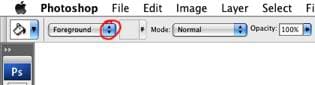
Step 3: Switch to Pattern Fill
In the options bar at the top of the screen, change the fill source from Foreground to Pattern.
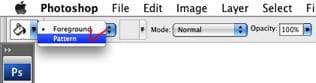
Step 4: Open the Pattern Picker
Click the pattern preview thumbnail in the options bar. This opens the Pattern Picker, where all your loaded patterns are displayed.
Step 5: Load Your New Patterns
Click the small gear icon in the upper-right corner of the Pattern Picker and select Load Patterns from the dropdown menu.
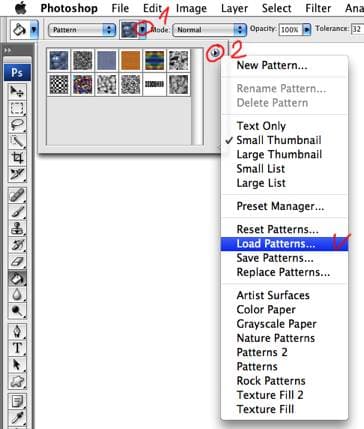
Step 6: Select the File and Start Using It
Browse to your .pat file in the dialog and click Open. The new patterns will appear in the Pattern Picker right away, ready to apply to any layer or selection.
Alternative Method: Using the Preset Manager
You can also load patterns through Edit → Preset Manager (or Edit → Presets → Preset Manager in newer versions):
- Open the Preset Manager
- Choose Patterns from the Preset Type dropdown
- Click Load
- Select your .pat file and click Open
This method is especially handy when you want to load, rename, reorder, or delete multiple patterns at once.
Different Ways to Apply Patterns
The Paint Bucket Tool is just one way to use patterns. Here are other options that give you more control:
Pattern Overlay (Layer Style)
This is often the most flexible approach:
- Select a layer in the Layers panel
- Go to Layer → Layer Style → Pattern Overlay (or double-click the layer)
- Choose your pattern from the picker
- Adjust Scale and Opacity to taste
The advantage here is that the pattern stays editable: you can change it, reposition it, or remove it at any time without affecting the layer content.
Fill Layer
For a full-canvas pattern:
- Go to Layer → New Fill Layer → Pattern
- Choose your pattern, set the scale, and click OK
This creates a dedicated layer that tiles the pattern across the entire canvas. It's easy to move, resize, and blend with other layers using opacity and blend modes.
Edit → Fill
For a quick one-time fill:
- Select the area you want to fill (or select nothing to fill the entire layer)
- Go to Edit → Fill (Shift + F5)
- Choose Pattern from the Contents dropdown
- Pick your pattern and click OK
Unlike the methods above, this applies the pattern directly to the layer pixels; it's permanent once applied.
Troubleshooting
Patterns don't appear after loading? Scroll to the bottom of the Pattern Picker; new patterns are appended at the end, just like brushes.
The .pat file won't load? Make sure you've fully extracted the file from any ZIP or RAR archive. Photoshop can only read uncompressed .pat files.
Pattern looks blurry or pixelated? Patterns are raster-based, so they have a fixed resolution. If you scale a pattern up significantly in Pattern Overlay or a Fill Layer, it will start to blur. Try to use patterns at or below their native scale for the sharpest results.
Can't find the Patterns option in older Photoshop? In versions before CC 2020, the pattern features may be in slightly different menu locations. Check Edit → Preset Manager. It's been available since Photoshop CS and works consistently across all versions.
Frequently Asked Questions
What are Photoshop patterns?
Photoshop patterns are raster-based tiles that fill areas with repeated designs. Available as .pat files, they're used for backgrounds, textures, overlays, and decorative fills in web design, graphic design, and print work.
What are the different ways to apply patterns in Photoshop?
You can apply patterns four ways: Pattern Overlay (Layer Style) for flexible, editable overlays; Fill Layer for full-canvas patterns on a dedicated layer; Paint Bucket Tool for quick one-time fills; and Edit > Fill for filling selected areas.
Why do my patterns look blurry?
Patterns are raster-based and have a fixed resolution. Scaling a pattern beyond its native size in Pattern Overlay or a Fill Layer causes blur. Use patterns at or below 100% scale for the sharpest results.
Can I use patterns from older Photoshop versions?
Yes. The .pat file format has been consistent across Photoshop versions. Patterns created in older versions work in newer ones, and vice versa. The Preset Manager (Edit > Preset Manager) has been available since Photoshop CS.
Your patterns are now loaded. Go ahead and start filling!