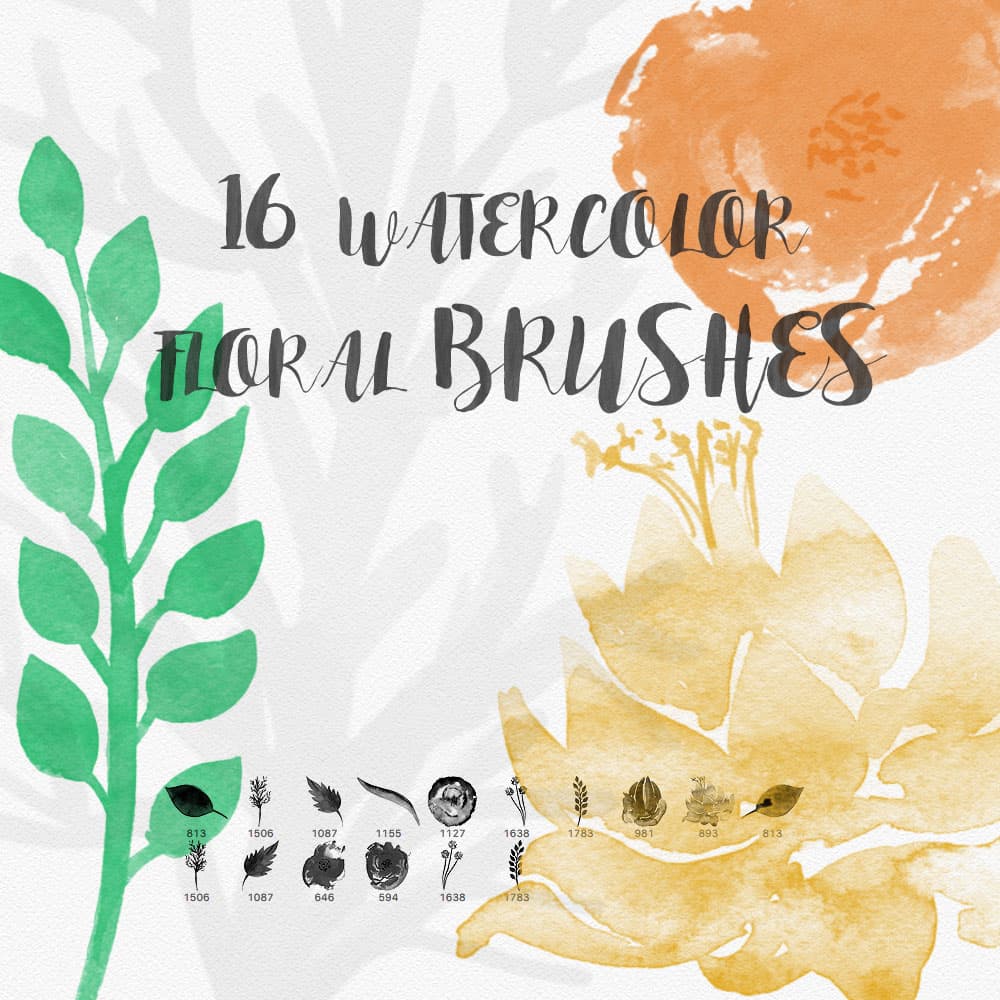
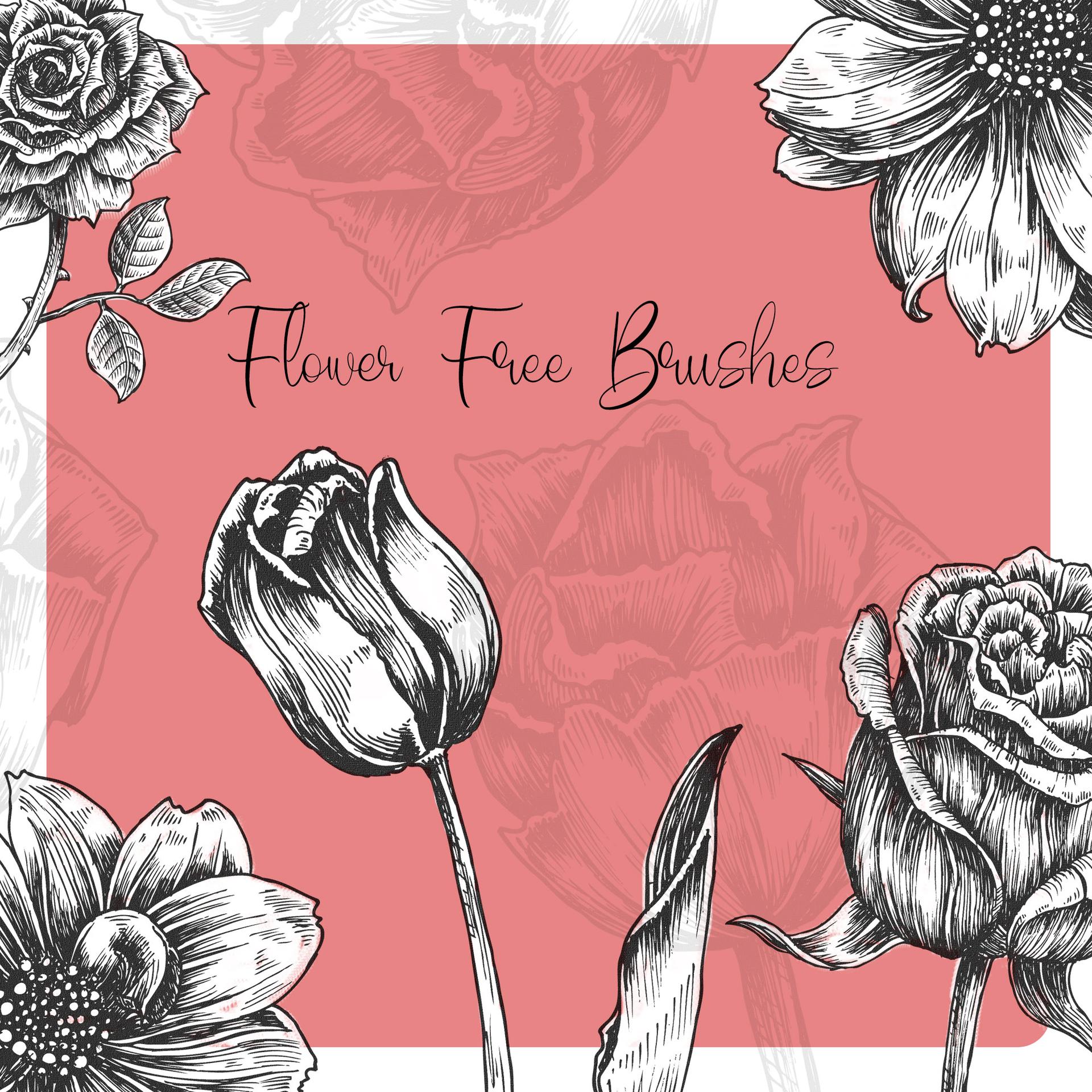
Flower Free Brushes for Photoshop
Resource Details
- Format
- ABR
- Size
- 4.2 MB
- Opens in
- Photoshop, GIMP
- Imports into
- Procreate, Affinity Photo, KritaShapes import. Dynamics may not.
- Brush type
- Stamp brushes
- Items in set
- 55
- Downloads
- 15.4k
- Added
- Sep 23, 2022
Description
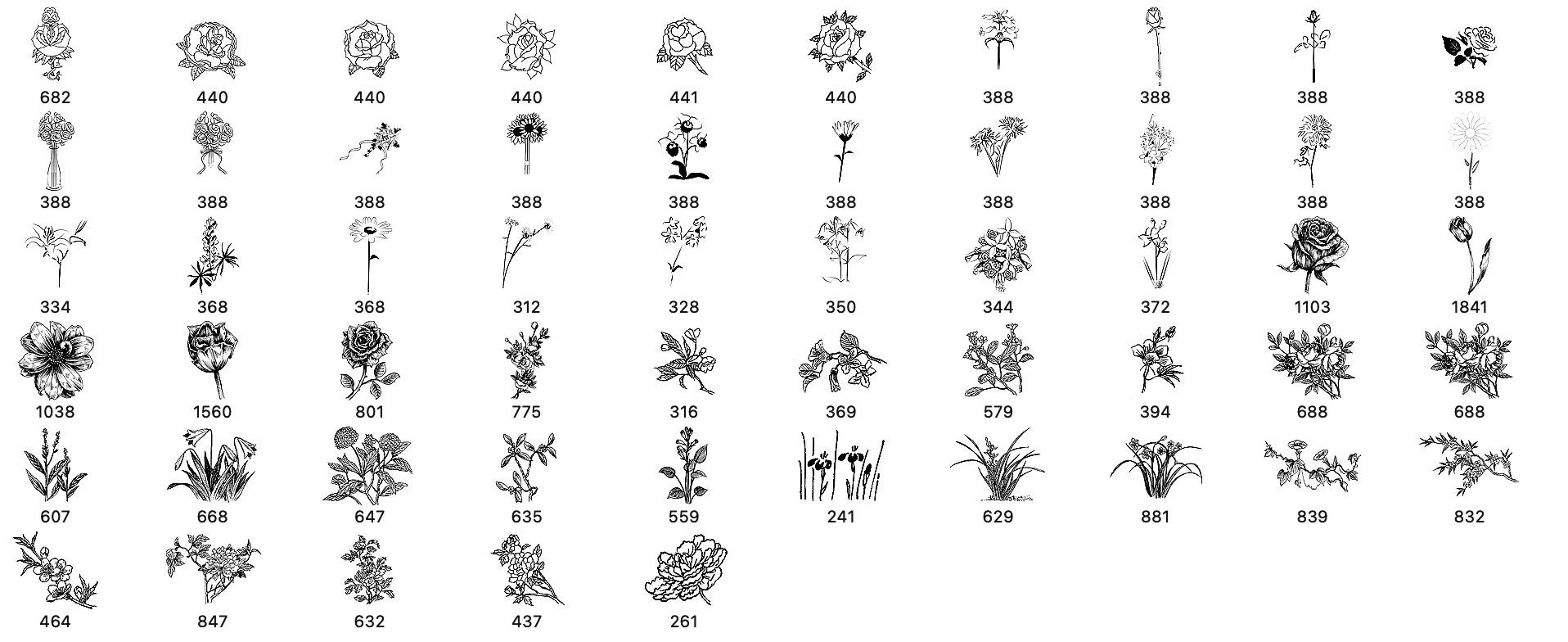
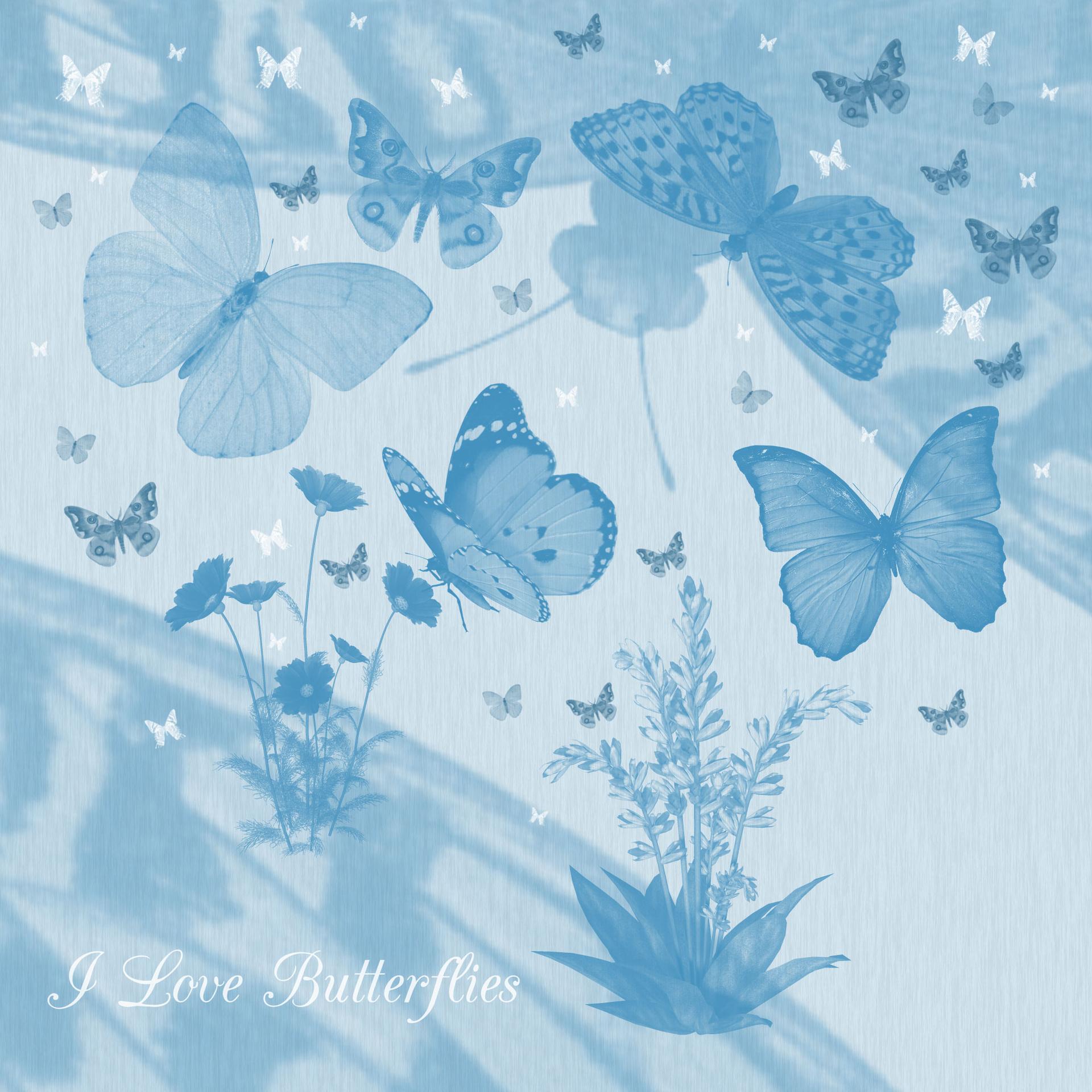
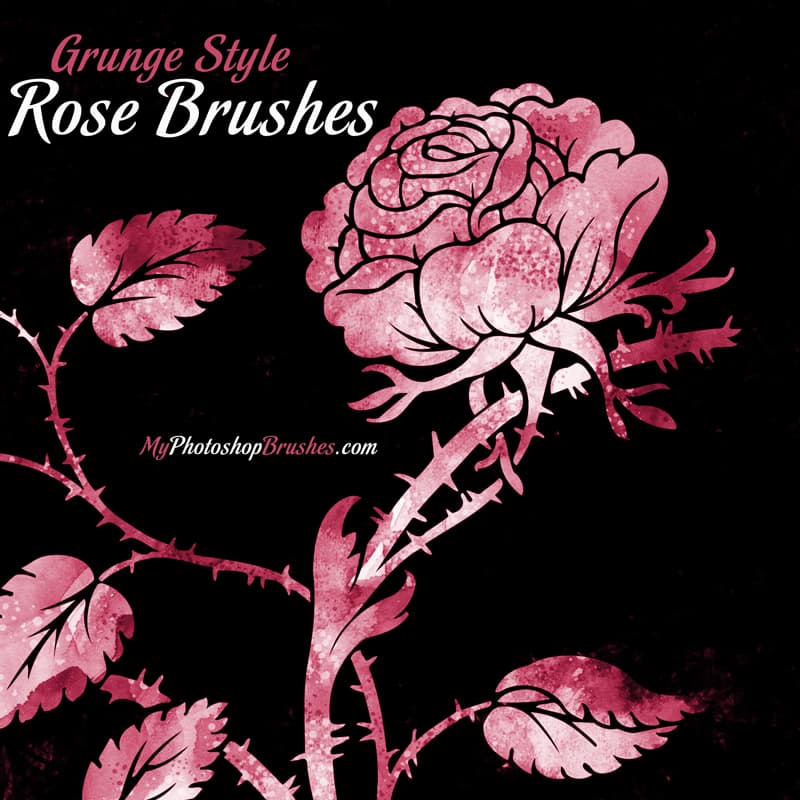
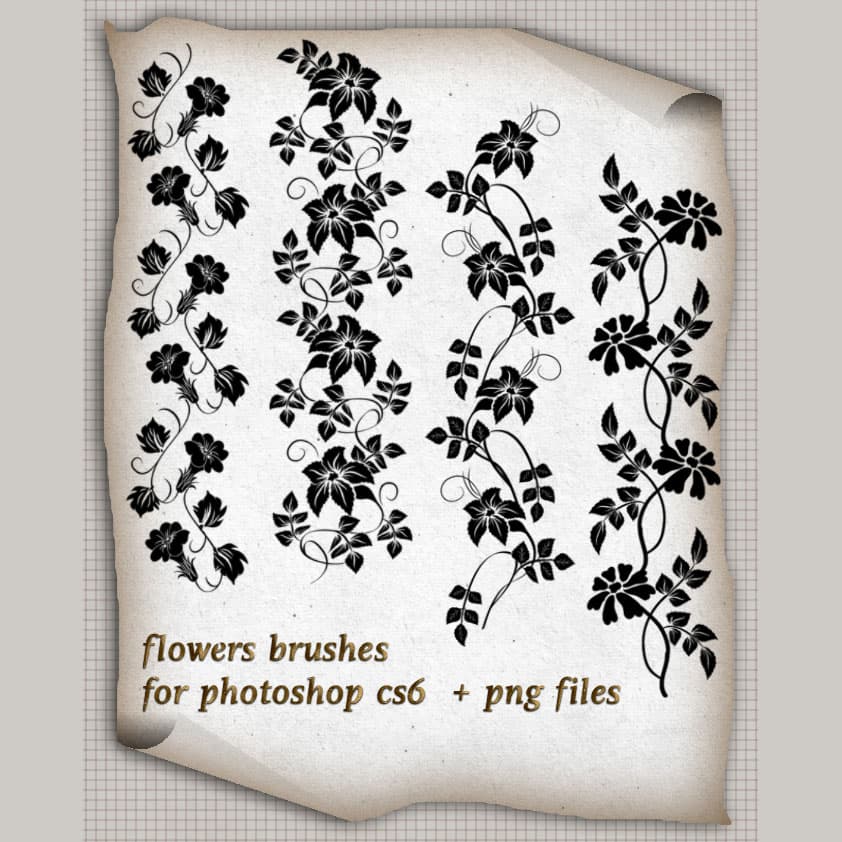
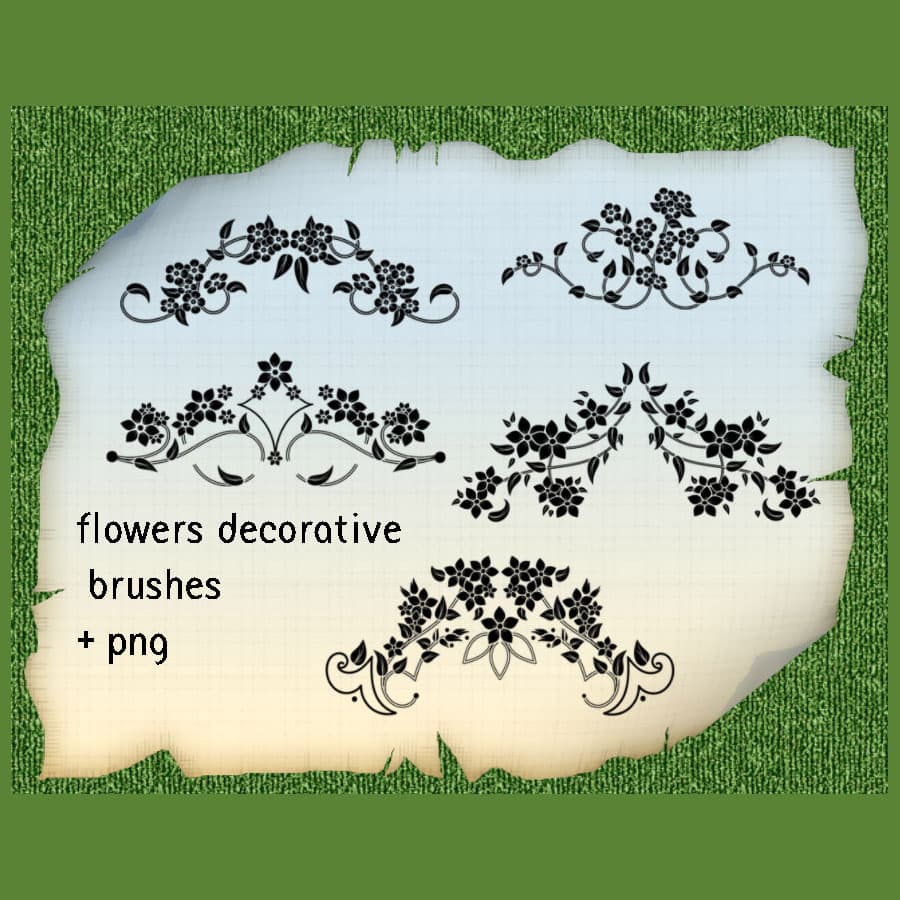
Get ready to add a touch of nature to your designs with these 55 free floral brushes for Photoshop. These brushes are made from beautiful graphics depicting some of the most stunning flowers, including roses and tulips. Whether you're a botany enthusiast or just love the beauty of flowers, these brushes are a must-have resource for any artist or designer.
Bring the beauty of nature into your designs with ease using these brushes. From delicate blooms to vibrant bouquets, you can create stunning floral arrangements that truly capture the essence of plants and flowers. Whether you're working on a personal project or a commercial one, these brushes will help you achieve the perfect floral look for your designs.
With the ability to create stunning graphics with just a few clicks, these brushes are a time-saving tool that will help you bring your creative visions to life. So why settle for ordinary designs when you can have designs that bloom with beauty? Download these 55 free flower brushes for Photoshop today and let your imagination run wild.
What's Included