How to Install Brushes in Photoshop
Photoshop brushes come as .abr files, and installing one takes less than a minute once you know where to look. This guide covers every way to do it: the instant drag-and-drop method, the built-in Import menu, and the manual Presets-folder route. It also includes version-specific instructions for Photoshop CC, CS6, and the iPad app, plus a troubleshooting section for the cases where a pack refuses to show up or paints differently than the preview promised.
If you just want the fast answer: download the .abr file, make sure it's unzipped, and double-click it while Photoshop is running. The rest of this page exists for everything that method doesn't cover.
Before You Start: Know Your Brush File Types
Not every file that installs "brushes" is the same kind of file, and knowing which one you're holding saves a lot of confusion later:
- .ABR (Adobe Brush) is the standard brush preset file. It stores one or more brush tips along with their settings (size, spacing, dynamics, texture). This is what virtually every brush pack on this site and elsewhere ships. One .abr can contain a single brush or several hundred.
- .TPL (Tool Preset) is a tool preset file. It stores a complete tool configuration: the brush tip plus the tool it belongs to, its blending mode, opacity, and flow. Illustrators sometimes distribute .tpl packs because they capture the exact painting setup, not just the tip. You load these through Window → Tool Presets (panel menu → Load Tool Presets), not through the Brushes panel.
- Brush groups inside newer .ABR files. Since Photoshop CC 2018, an .abr can also carry folder structure and richer dynamics. Older Photoshop versions can't read these newer files, which matters for compatibility (more on that in the troubleshooting section).
In Photoshop CS6 and older, both file types were also manageable through Edit → Presets → Preset Manager, a single dialog that loads, renames, and saves brushes, tool presets, swatches, and more as sets. In Photoshop CC 2018 and later, brush management moved into the Brushes panel itself, and the Preset Manager no longer lists brushes at all. If a tutorial tells you to use the Preset Manager and you can't find your brushes there, that's why; use the Brushes panel instead.
Method 1: The Quick Way
The fastest option, no menus required:
- Make sure Adobe Photoshop is running
- Locate the downloaded .abr file on your computer
- Double-click the file, or simply drag and drop it onto the Photoshop window
- Done: the new brushes appear instantly at the bottom of your Brush Palette
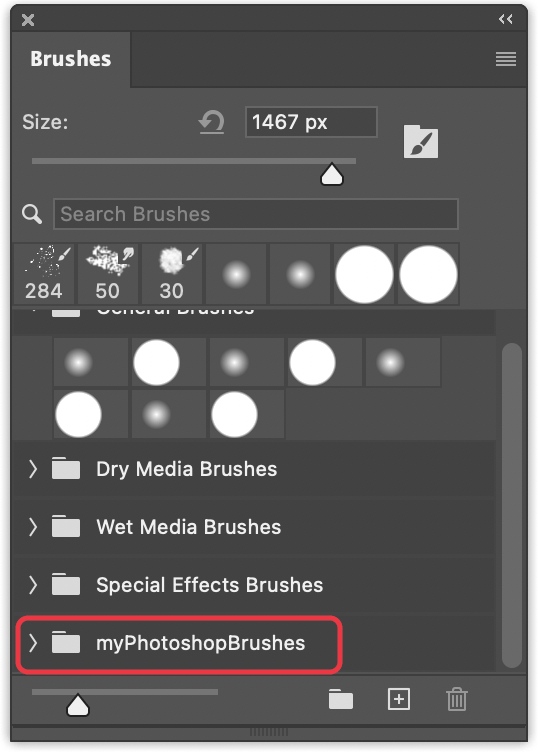
This method works reliably in Photoshop CC and later. In older versions (CS6 and earlier) it may not work; use Method 2 instead.
Open Window → Brushes (or press F5) and scroll to the bottom of the panel: Photoshop appends the imported set as a new group labeled with the pack's original file name.
Method 2: Import Through Photoshop
If you prefer using Photoshop's built-in menu:
- Open Adobe Photoshop
- Go to Window → Brushes to open the Brushes panel
- Click the fly-out menu icon (top-right corner of the panel)
- Choose Import Brushes
- Navigate to the .abr file on your system and click Open
- The imported brushes now appear at the bottom of the Brushes panel
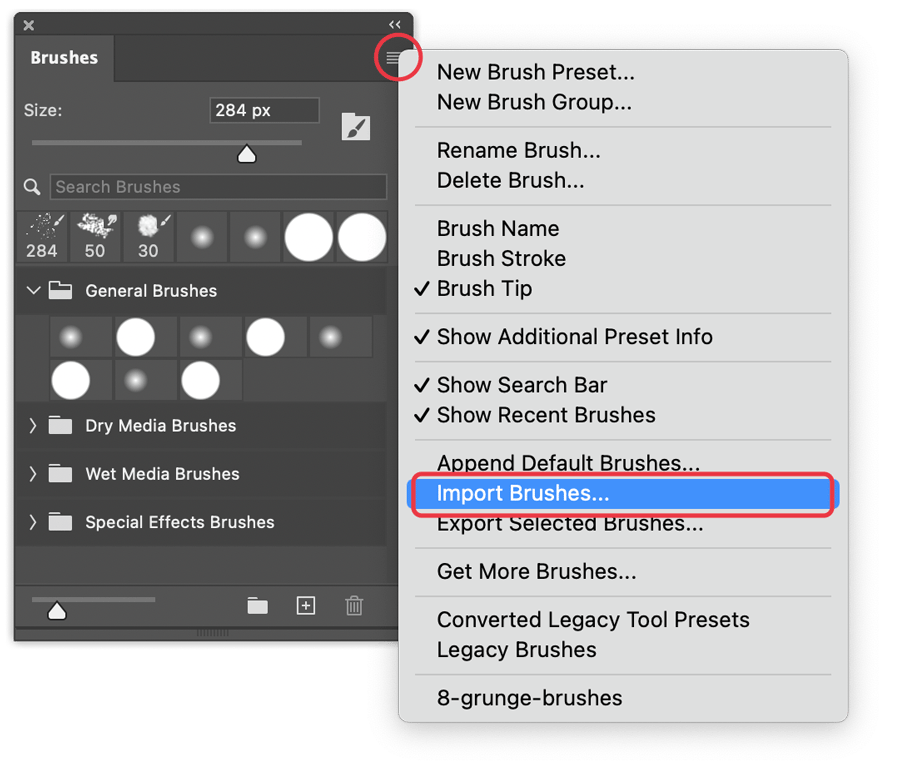
Note for Photoshop CS6 and older: The menu option may be called Load Brushes rather than Import Brushes. The result is the same.
The same fly-out menu also holds Get More Brushes…, which opens Adobe's free brush packs page. Useful to know it exists, but everything there installs exactly the same way as any other .abr file.
Method 3: Manual Installation into the Presets Folder
Both methods above register the brushes in Photoshop's internal preset database. There's a third route: placing the .abr file directly into Photoshop's Presets directory on disk. Photoshop scans this folder at startup, so any brush file inside it appears in the Brushes panel the next time you launch the app.
The default locations:
- macOS:
/Users/{username}/Library/Application Support/Adobe/Adobe Photoshop {version}/Presets/Brushes - Windows:
C:\Users\{username}\AppData\Roaming\Adobe\Adobe Photoshop {version}\Presets\Brushes
On macOS the Library folder is hidden by default: in Finder, hold Option while opening the Go menu to reveal it. On Windows, AppData is hidden too; paste the path into the Explorer address bar (replacing {username}) or enable hidden items in the View menu.
When is the manual route worth it?
- Installing many packs at once. Copying twenty .abr files into the folder in one go beats importing them one at a time.
- Keeping the preset database lean. Brushes loaded from the Presets folder live as files on disk rather than being baked into Photoshop's settings, which keeps your preferences file smaller and makes the collection easy to back up; the folder is the backup.
- Troubleshooting. If imports through the panel keep failing (a corrupt preferences file can cause this), a file dropped into the Presets folder still loads at startup, which helps you tell a broken .abr apart from a broken preference database.
One thing to keep in mind: the path contains the Photoshop version. When you upgrade to a new major release, the new version gets its own Presets folder. Your brush files don't vanish, but you'll either copy them over or let the Migrate Presets dialog do it for you (covered below).
Installing Brushes in Different Photoshop Versions
The core idea is the same everywhere, but the menus moved around over the years. Here's what changes:
Photoshop CC (2018 and newer)
Everything above applies as written: drag-and-drop works, the panel is called Brushes (Window → Brushes, or F5), and the import command is Import Brushes. Brushes are organized into collapsible groups: imported packs arrive as a group at the bottom of the list, and you can drag brushes between groups, nest folders, and right-click any brush to rename or delete it.
Photoshop CS6 and Older
- The panel lives under Window → Brush Presets (the companion Window → Brush panel holds the dynamics settings).
- To load a pack, open the Brush Preset picker or the panel's fly-out menu and choose Load Brushes. Loading appends the new set to the current list; choosing Replace Brushes swaps the list out instead.
- Edit → Presets → Preset Manager offers the same load/save operations in one dialog and is the easiest place to save a custom selection as a new .abr (Save Set).
- No brush groups here: long lists are flat, which is one more reason to keep only the sets you actually use loaded.
- Double-clicking an .abr file often works in CS6 too, but it's less reliable than in CC; if nothing happens, use Load Brushes.
Photoshop on the iPad
The iPad app reads the same .abr files as the desktop version:
- Get the .abr file onto the iPad, via the Files app (iCloud Drive, Dropbox, a USB drive) or AirDrop.
- In the Files app, tap the .abr file and choose to open it in Photoshop. Alternatively, inside Photoshop, open the brush picker and use its import option to browse to the file.
- The imported set appears at the bottom of the brush list, same as on desktop.
Two caveats: brushes do not sync automatically between desktop and iPad, so you'll import the pack on each device; and some very old .abr files that render fine on desktop may not import on the iPad at all. If a file is rejected, load it into desktop Photoshop first, then re-export the set as a fresh .abr (see the next section) and try again.
Moving Brushes to a New Machine or Version
Sooner or later you'll upgrade Photoshop or switch computers, and a brush library you spent years collecting should survive the move.
Upgrading Photoshop on the same machine is the easy case: on first launch, the new version shows the Migrate Presets dialog and offers to carry over brushes, swatches, and other presets from the previous installation. Say yes and everything moves automatically. If you skipped the dialog, it's still available later under Edit → Presets → Migrate Presets.
Moving to a different machine takes one export step:
- In the Brushes panel, select the brushes or the whole group you want to take along.
- Open the fly-out menu and choose Export Selected Brushes (in CS6 and older: Edit → Presets → Preset Manager → Save Set).
- Photoshop writes a portable .abr file. Copy it to the new machine and install it with any method on this page.
That exported .abr is also your insurance policy: keep it in cloud storage or on a backup drive and a reinstall, a crashed preferences file, or an accidental Reset All Preferences can't take your collection with it. Photoshop's preset database is part of its preferences: resetting preferences wipes imported brushes, and the exported file is what brings them back in seconds.
Using .ABR Brushes Outside Photoshop
An .abr file is Adobe's own format, but it is not locked to Adobe's software. Two editors that plenty of people already have open read .abr packs directly, so a set from this site is useful even without a Photoshop subscription.
Photopea (free, in the browser)
Photopea is a browser-based editor that loads .abr sets with nothing to install:
- Open photopea.com and start or open a document.
- Choose File → Open and pick the .abr file. Photopea adds the new brushes to its brush list.
- You can also load a set straight from the brush panel: click the brush button in the top toolbar, then the small arrow beside it, and open the .abr from there.
There is no brush-import entry in Photopea's Edit menu, so ignore any guide that sends you there. File → Open is the route Photopea's own documentation gives.
Affinity Photo
Affinity Photo imports .abr through its Brushes panel:
- Open the Brushes panel.
- Open the Panel Preferences menu in the panel's top-right corner and choose Import Brushes.
- Pick the .abr file. Affinity's documentation notes that imported ABR brushes arrive in their own separate categories, so a pack lands as its own category instead of being mixed into an existing one.
Both apps read the file itself, but neither runs Photoshop's brush engine. If a preview image was painted in Photoshop with the pack's full dynamics, the closest match to that preview still comes from Photoshop on desktop or iPad.
Managing a Large Brush Collection
Once you start collecting brushes, your Brush Palette can get overwhelming fast. Here are a few strategies to keep things organized:
- Use Brush Groups. In Photoshop CC 2018 and later, you can create folders inside the Brushes panel. Drag brushes into groups like "Inking", "Textures", or "Watercolor" to keep them sorted.
- Rename your brushes. Right-click any brush in the panel and choose Rename Brush. A descriptive name like "Rough Charcoal Thick" is much easier to find than "Brush 47".
- Delete what you don't use. Right-click a brush and choose Delete Brush to remove it from the panel. This doesn't delete the .abr file from disk; you can always reimport later.
- Save custom sets. After organizing your brushes, select a group and choose Export Selected Brushes from the panel menu (in CS6 and older: Edit → Preset Manager, select the brushes, Save Set) to create your own curated .abr file.
- Keep the active list reasonable. A few hundred loaded tips is fine; several thousand makes the panel sluggish, because Photoshop redraws every preview thumbnail when the panel refreshes. Keep the sets you paint with daily loaded and store the rest as exported .abr files you can import on demand.
Troubleshooting
The pack doesn't appear after installing? Scroll to the very bottom of the Brushes panel: newly loaded brushes are always added at the end, inside a group named after the .abr file. If the panel is large, they're easy to miss. Also check you imported into the right app: if you run two Photoshop versions side by side, the double-click method opens whichever one the operating system prefers, which may not be the one you're looking at.
The .abr file won't open? Make sure the file isn't inside a ZIP archive. Some downloads come compressed; extract the archive first, then import the .abr file inside. If the file is extracted and still refuses, it may be corrupt (re-download it) or newer than your Photoshop version (see the compatibility note below).
Double-clicking opens the wrong application? If the .abr opens in a text editor, an archive tool, or another graphics app instead of Photoshop, the file-type association on your system points elsewhere. Skip the double-click entirely and use Import Brushes from inside Photoshop (Method 2), which doesn't depend on file associations. To fix the association itself: right-click the file, choose Open With / Get Info, and set Photoshop as the default for .abr files.
Brushes install but don't react to pen pressure? The brush is fine; the connection between your tablet and Photoshop isn't. Check that your tablet driver is installed and running, then open Window → Brush Settings and look at the dynamics: if a control set to Pen Pressure shows a small warning triangle, Photoshop isn't receiving pressure data. Restarting Photoshop after plugging in the tablet usually clears it; reinstalling the driver is the next step. On Windows, toggling the driver between Windows Ink and WinTab modes resolves most of the stubborn cases.
A legacy .abr renders flat, with no texture or scatter? Brush files made before Photoshop CC 2018 often store only the tip shape, with little or none of the dynamics data modern brushes carry. The tip loads, but it paints like a plain stamp. There's no automatic upgrade: open Window → Brush Settings and add the dynamics yourself (Shape Dynamics for pressure-driven size, Scattering and Texture for grain), then save the result as a new brush.
Brushes look different than expected? Brush appearance can be affected by your current tool settings, especially Opacity, Flow, and Smoothing in the options bar. Reset them to 100% to see the brush at its default look. Also check Window → Brush Settings to see if any dynamics (scattering, shape jitter) are applied.
The tips look soft or blurry at large sizes? A brush tip is a bitmap with a fixed native resolution. Painting at a size well above that resolution stretches the bitmap, and the stroke edge goes soft. Nothing in the settings fixes that. Check the brush's native size (it's shown when you hover over the tip in the panel): if you routinely paint larger, look for a high-resolution version of the pack, since modern packs commonly ship 2000–5000 px tips exactly for this reason.
Compatibility issues with older .abr files? Brush files created in newer versions of Photoshop may not open in much older versions (e.g., trying to load a CC 2026 brush in CS3). Unfortunately, there's no reliable way to convert them; you'll need to use a version of Photoshop that matches or is newer than the one used to create the brushes.
Frequently Asked Questions
What file format are Photoshop brushes?
Photoshop brushes are distributed as .abr (Adobe Brush) files. These files contain one or more brush presets that can be loaded into Photoshop for immediate use in painting, retouching, and design tools. A related format, .tpl, stores tool presets (a brush tip together with a complete tool configuration) and loads through the Tool Presets panel instead.
Where does Photoshop store brushes on my computer?
On macOS, brushes are stored in /Users/{username}/Library/Application Support/Adobe/Adobe Photoshop {version}/Presets/Brushes. On Windows, the path is C:\Users\{username}\AppData\Roaming\Adobe\Adobe Photoshop {version}\Presets\Brushes. Brushes you import through the panel are stored in Photoshop's preset database rather than as loose files.
Why aren't my brushes showing after importing?
Scroll to the very bottom of the Brushes panel: newly loaded brushes are always added at the end. If the .abr file won't open, make sure it's been extracted from any ZIP or RAR archive first.
Can I use brushes from newer Photoshop versions in older ones?
Newer Photoshop versions can load older brush files without issues. However, older versions may not be able to open brush files created in much newer versions. There is no reliable way to convert them; use a matching or newer version of Photoshop.
Why don't my brushes respond to pen pressure?
Pressure response comes from your tablet driver, not the brush file. Make sure the driver is installed and running, then check Window → Brush Settings: a warning triangle next to a Pen Pressure control means Photoshop isn't receiving pressure data. Restart Photoshop with the tablet connected, and on Windows try switching the driver between Windows Ink and WinTab modes.
How do I install brushes in Photoshop on the iPad?
Transfer the .abr file to the iPad via the Files app or AirDrop, then open it in Photoshop: either tap the file in Files and hand it to Photoshop, or use the import option in Photoshop's brush picker. The set appears at the bottom of the brush list. Brushes don't sync between desktop and iPad, so import the pack on each device separately.
Do my installed brushes carry over when I upgrade Photoshop?
Yes. On first launch, the new version offers to migrate presets from the old one, and the same tool is always available under Edit → Presets → Migrate Presets. For extra safety, export your custom brushes as an .abr file before upgrading; that file re-imports into any version in seconds.
Why do imported brushes paint like a plain stamp, with no texture or scatter?
The pack was probably made for a Photoshop version before CC 2018 and stores only the tip shapes. Open Window → Brush Settings and add the missing dynamics yourself (Shape Dynamics, Scattering, Texture), then save the configured brush as a new preset.
That's all there is to it. Your new brushes are loaded and ready to use in any project. And if you don't have a pack to practice on yet, every brush set on this site is a free .abr download away.