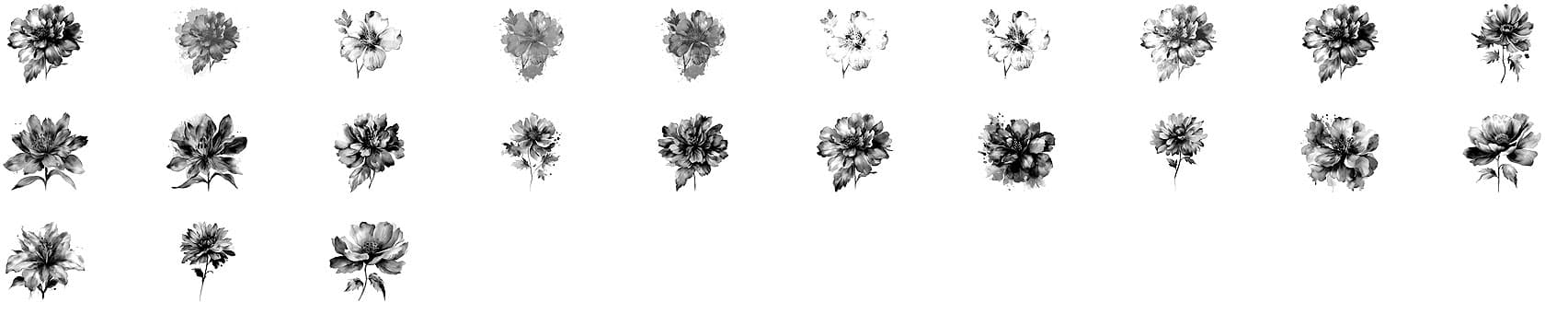
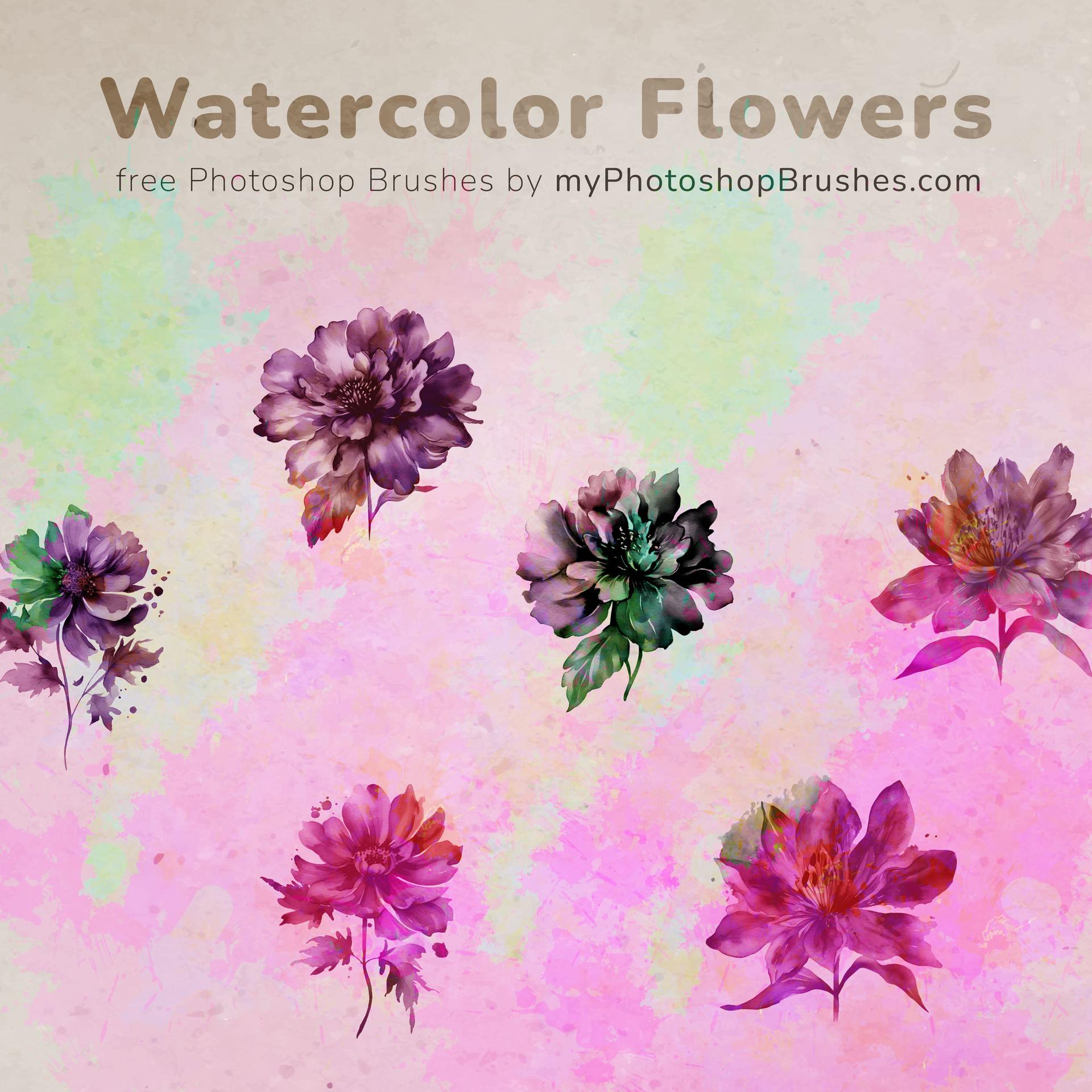
23 Free Watercolor Flower Brushes
Resource Details
- Format
- ABR
- Size
- 8.4 MB
- Opens in
- Photoshop, GIMP
- Imports into
- Procreate, Affinity Photo, KritaShapes import. Dynamics may not.
- Brush type
- Stamp brushes
- Items in set
- 23
- Downloads
- 9.2k
- Added
- Jun 10, 2023
Description
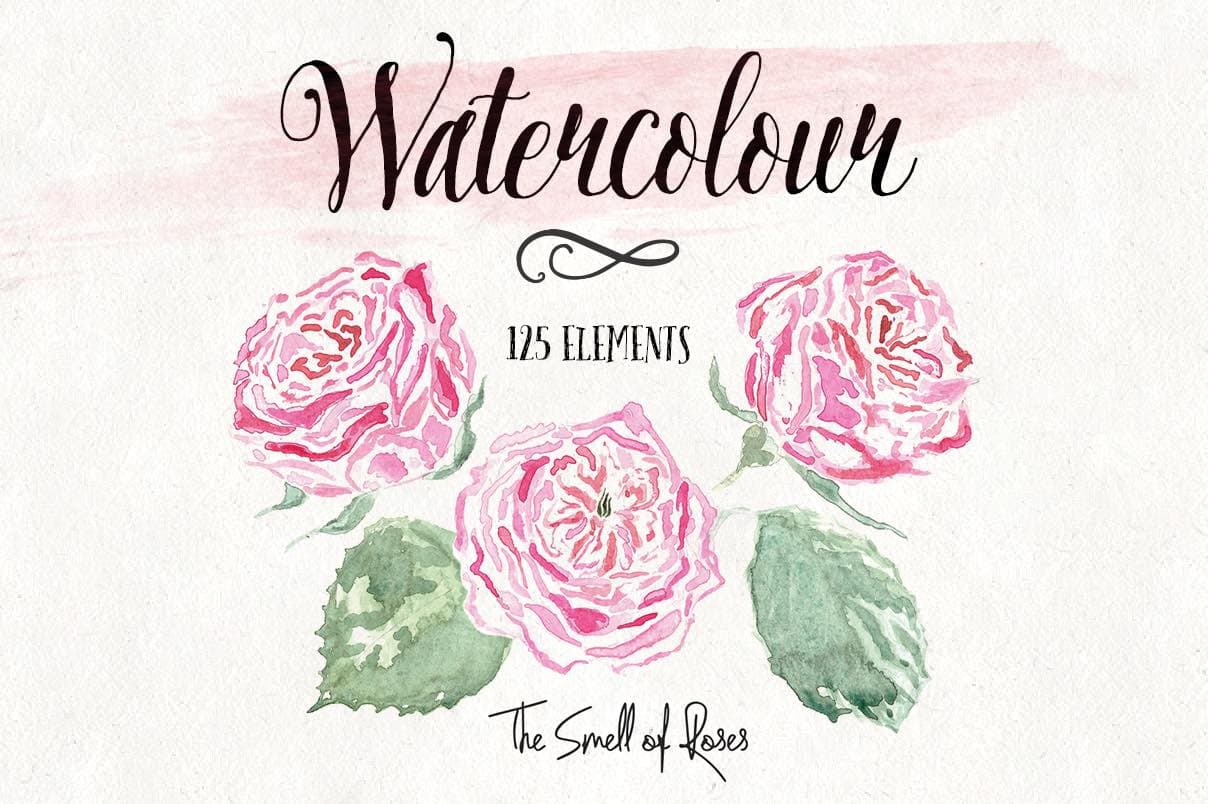
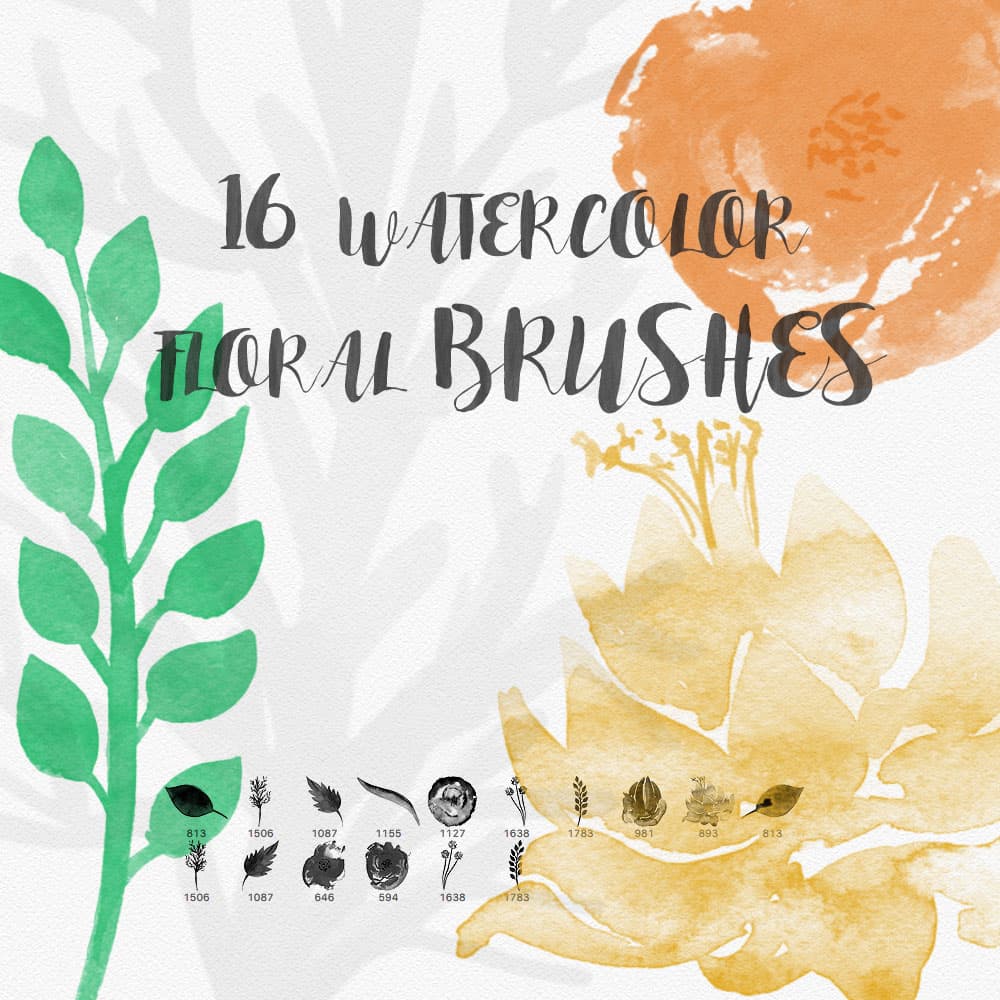
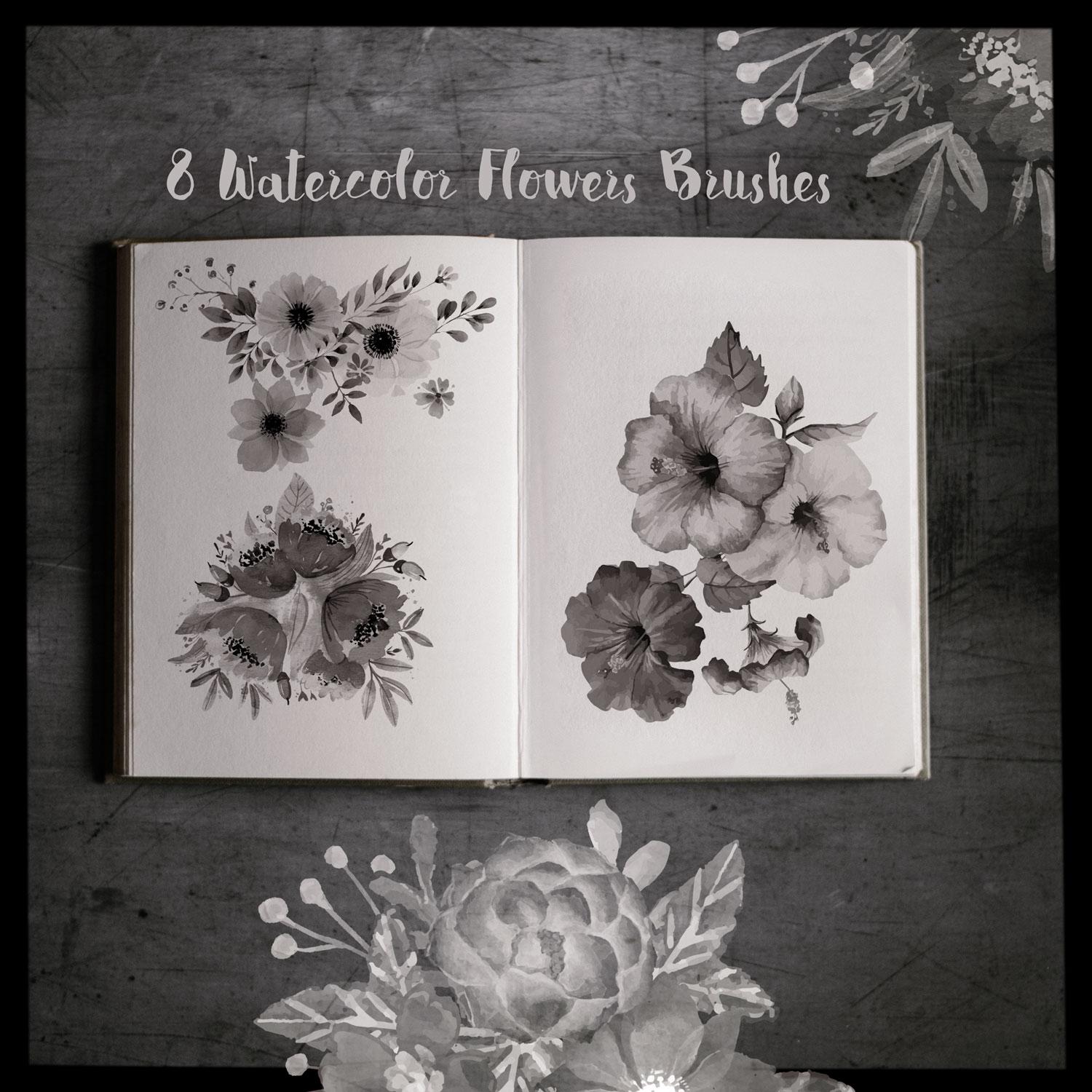
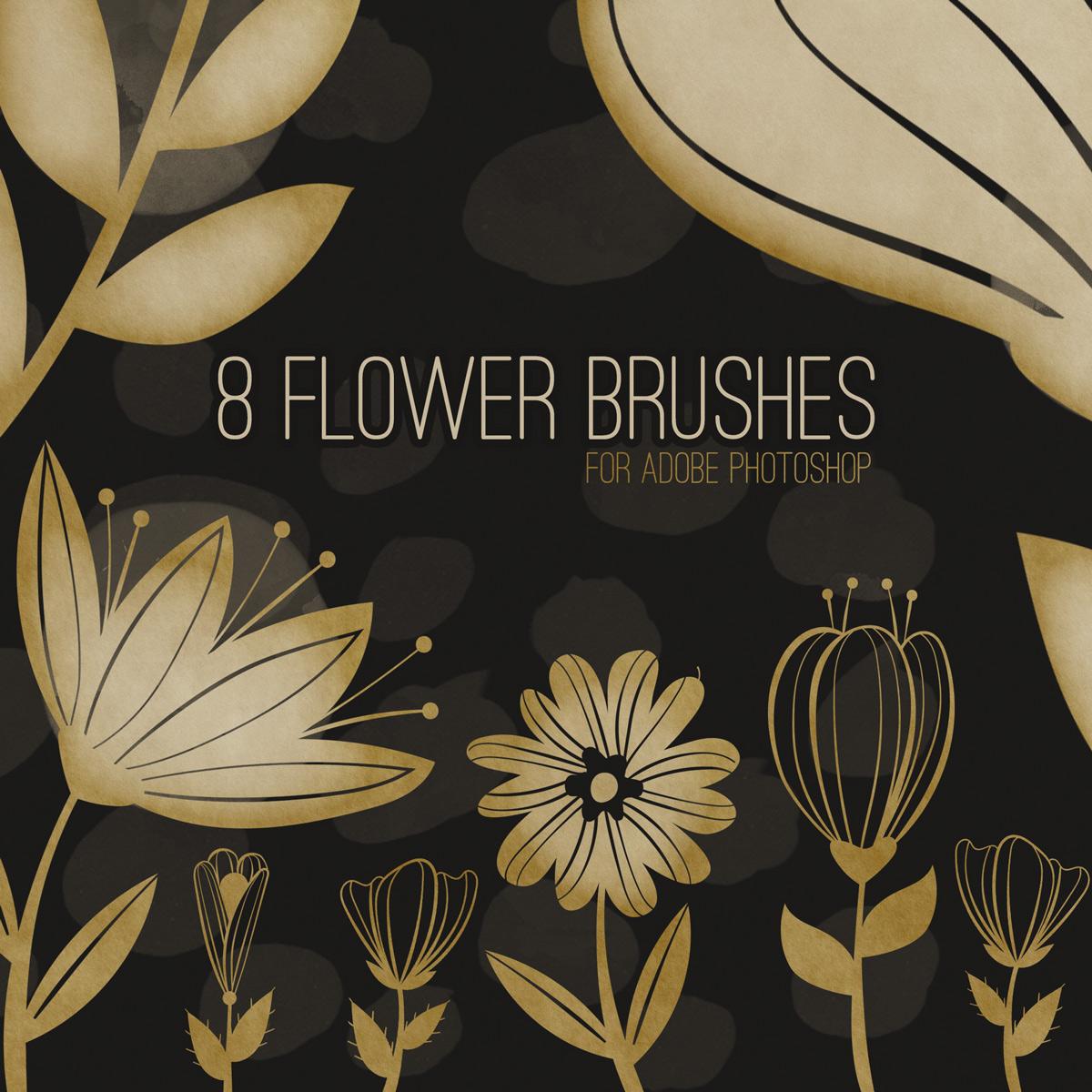
23 Free Watercolor Flower Brushes is an exquisite pack of high-quality digital brushes designed for use in programs such as Adobe Photoshop. Infused with the charm and elegance of watercolor, these brushes offer a wide array of flowers to add a graceful touch to your creative projects.
Each brush captures the unique, organic texture and flow of watercolor, resulting in a semi-transparent and delicate finish that adds an artistic flourish to your work.
Whether you're working on digital paintings, enhancing photographs, designing invites or greeting cards, these watercolor flower brushes offer versatility and ease of use. You can create intricate floral arrangements, craft whimsical backdrops, or add detailed accents to your designs. Regardless of your project, these brushes provide you with the toolset to create beautiful, watercolor-styled floral imagery.
The 23 Free Watercolor Flower Brushes pack is not just a toolset, it's an invitation to unleash your creativity, providing an opportunity to explore the lovely world of watercolor florals.
What's Included