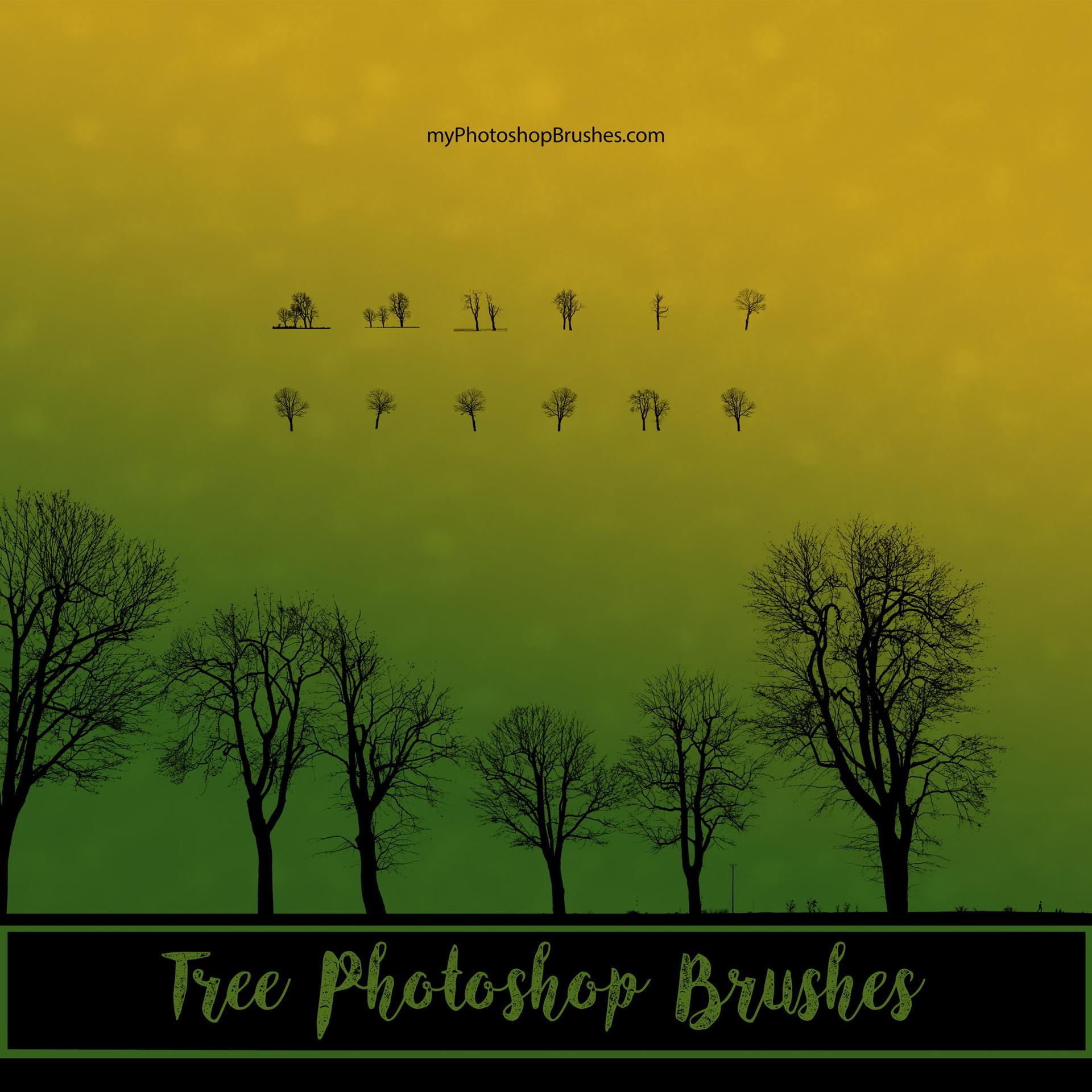
40 Tree Photoshop Brushes
Resource Details
- Format
- ABR
- Size
- 126.6 MB
- Opens in
- Photoshop, GIMP
- Imports into
- Procreate, Affinity Photo, KritaShapes import. Dynamics may not.
- Brush type
- Stamp brushes
- Items in set
- 40
- Downloads
- 5.7k
- Added
- Mar 17, 2026
Description
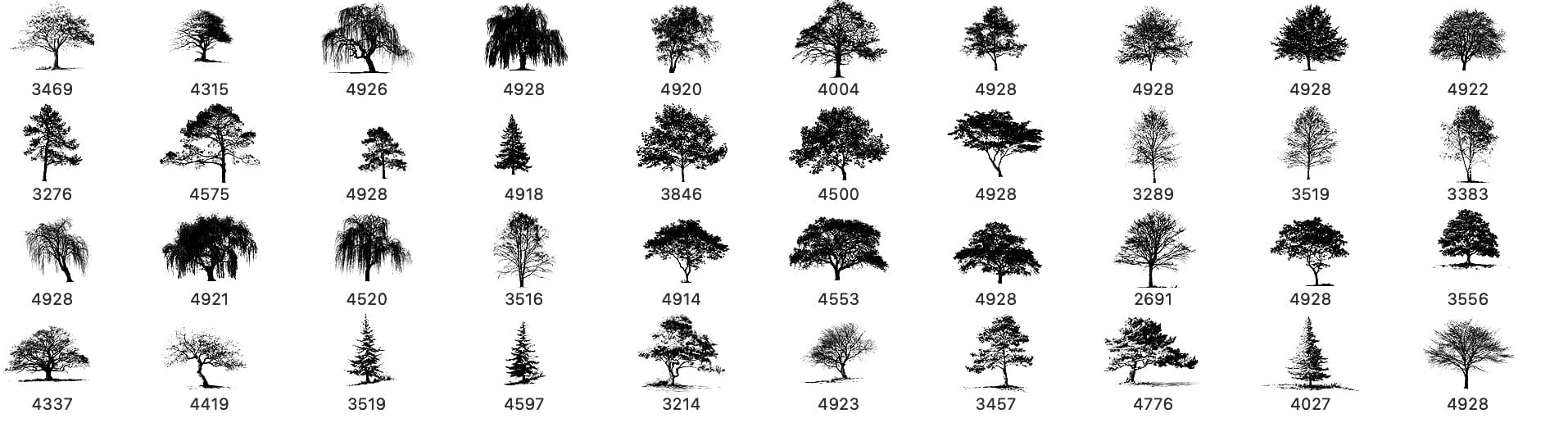
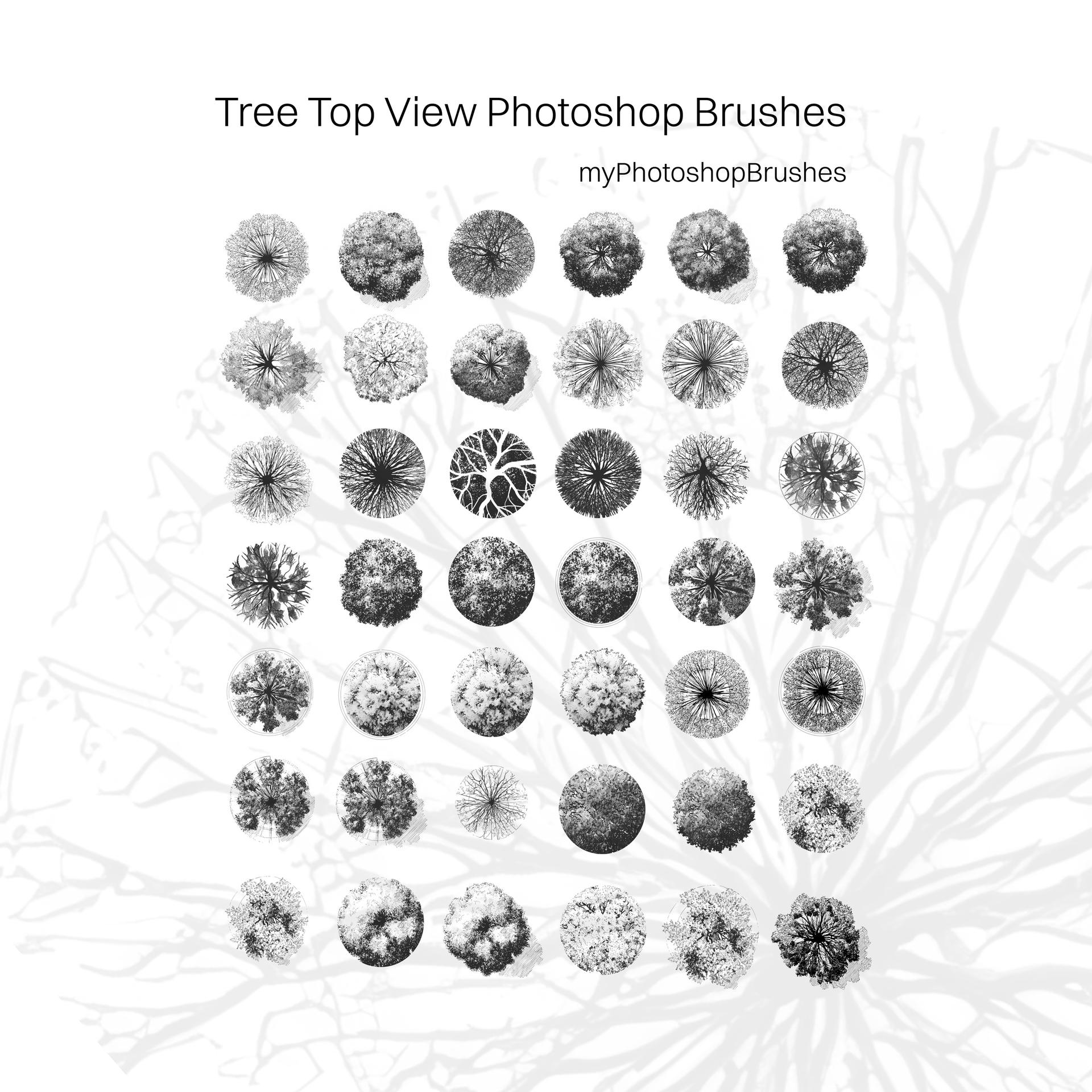
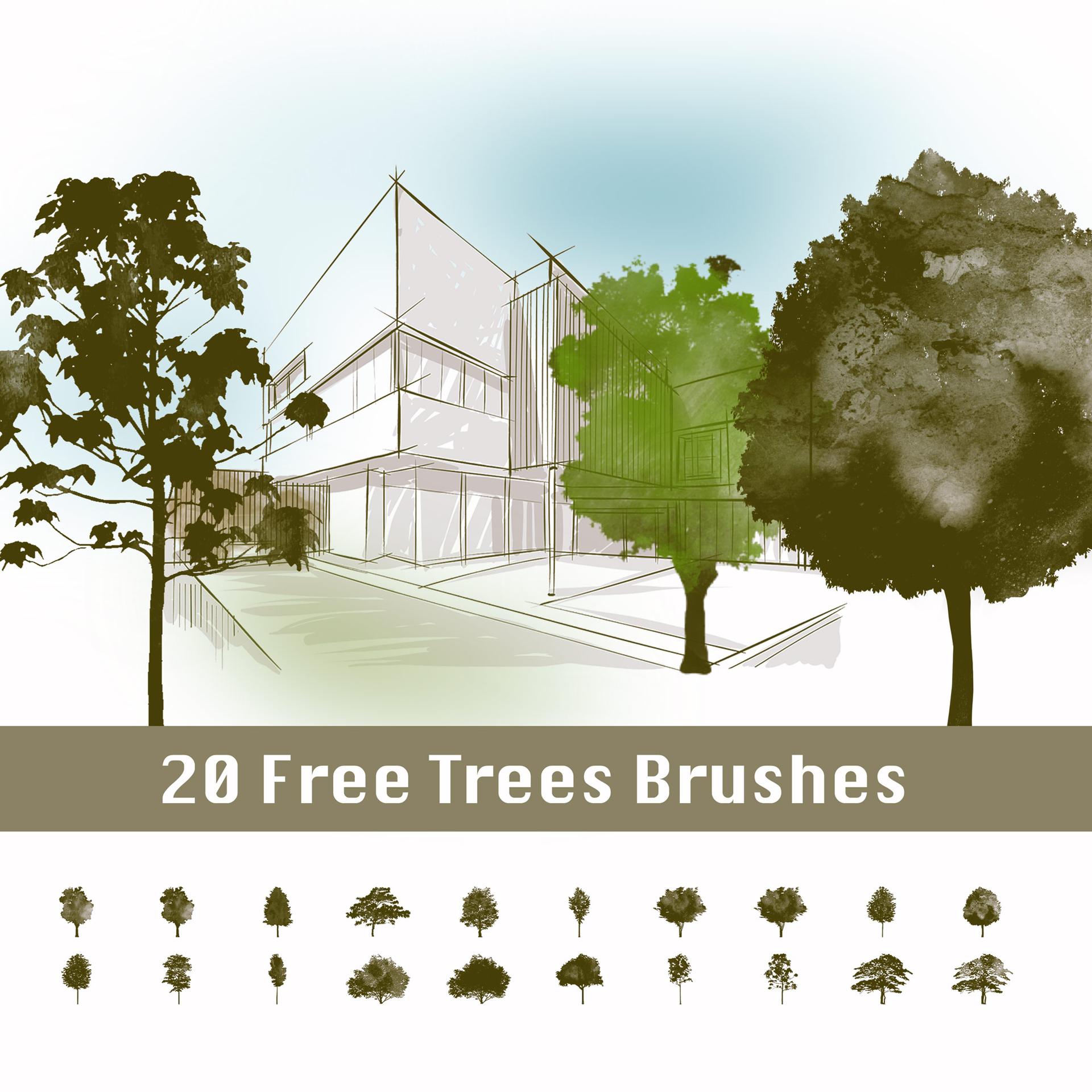
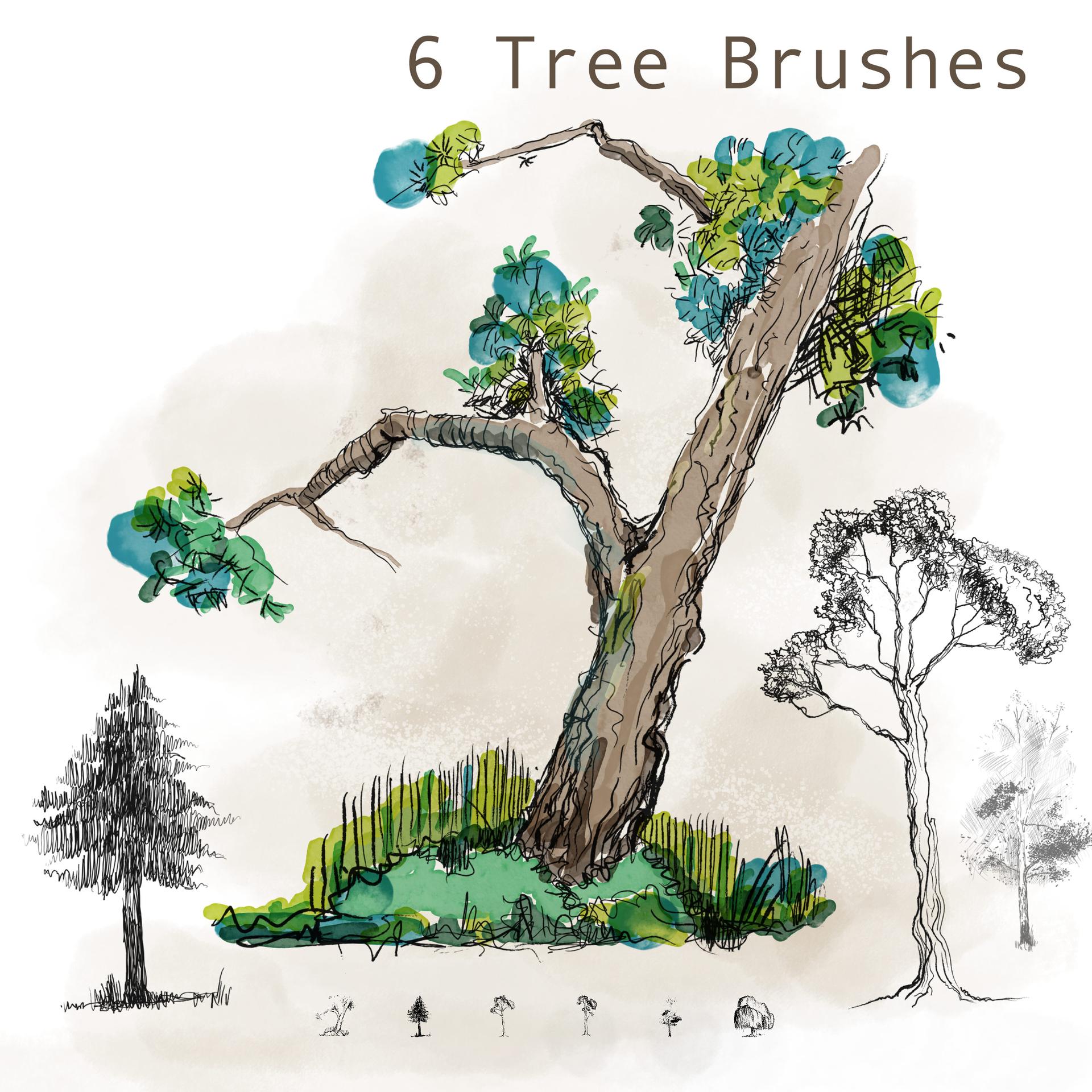
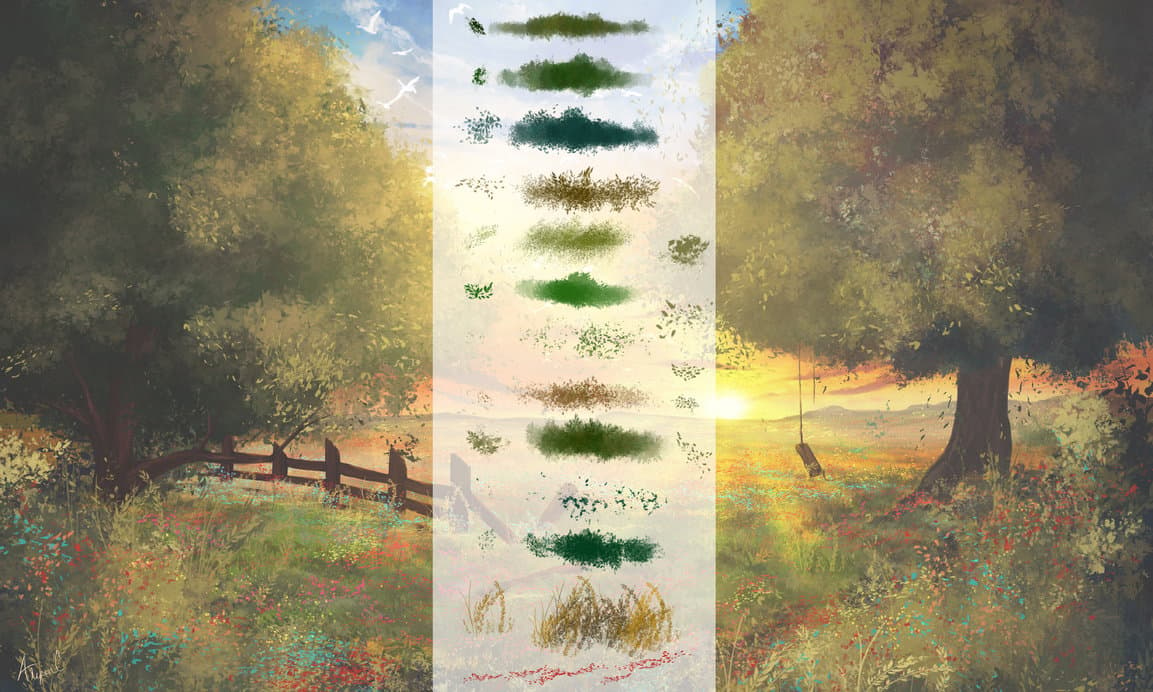
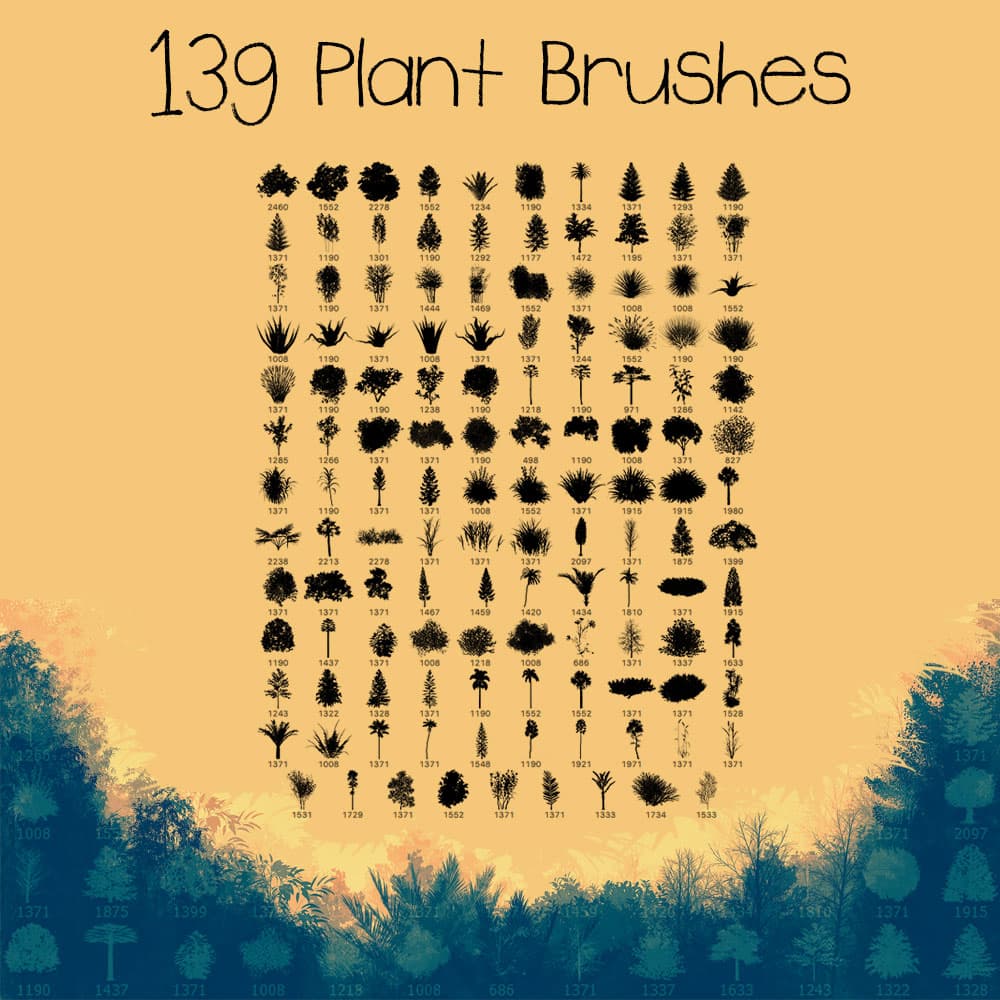
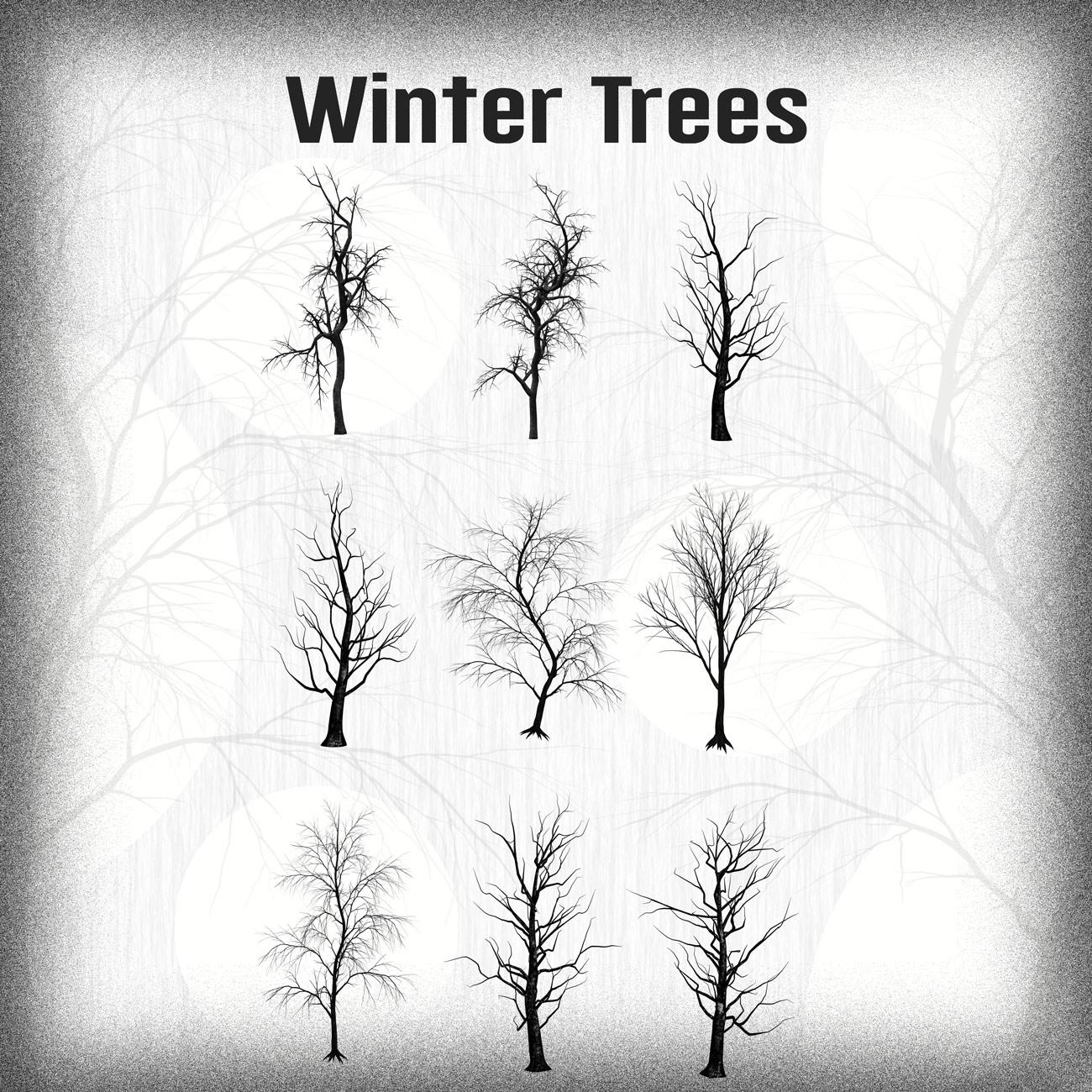
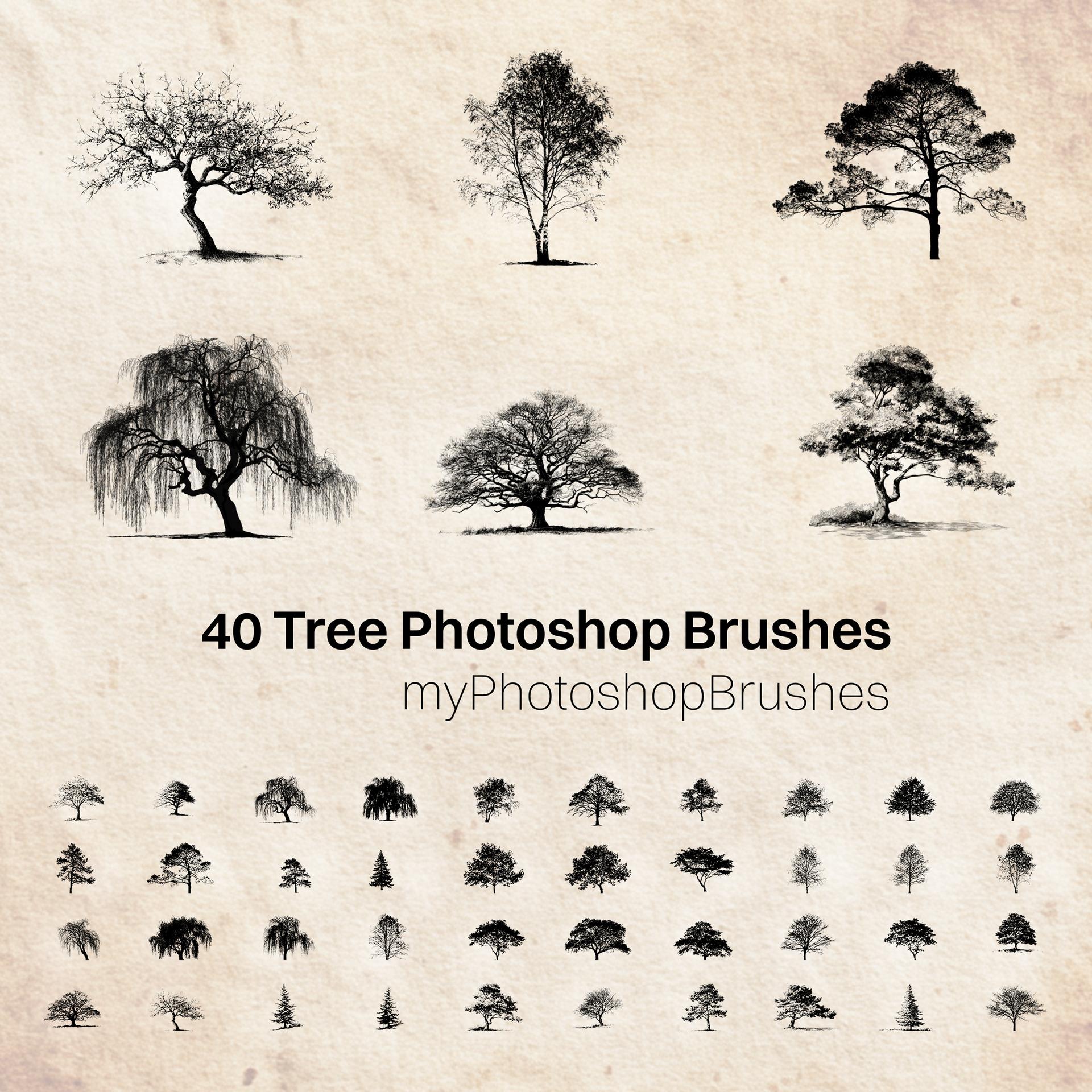
Enhance your creative projects with this collection of 40 high-quality tree brushes for Photoshop. Perfect for designers, illustrators, architects, and especially landscape architects, this versatile set includes a wide variety of tree silhouettes, from delicate, leafless branches to full, lush canopies.
The pack features different tree species such as pine, weeping willow, birch, oak, maple, and alder, giving you a rich selection of natural forms and styles.
Each brush is created in high resolution, allowing you to scale your designs without losing detail. Whether you're working on architectural visualizations, landscape plans, concept art, posters, or decorative compositions, these brushes will help you achieve natural and realistic results with ease.
What’s included:
-
40 unique tree brushes
-
High-resolution files for crisp, detailed artwork
-
Compatible with Adobe Photoshop
Perfect for:
-
Architectural and landscape design
-
Landscape architecture presentations
-
Digital painting and illustration
-
Graphic design and print projects
-
Creative backgrounds and textures
Download this free pack and bring your designs to life with beautifully detailed tree brushes.
What's Included