11 Cloud Brushes
Resource Details
- Author
- thepixlpushe
- Format
- ABR
- Size
- 11.9 MB
- Opens in
- Photoshop, GIMP
- Imports into
- Procreate, Affinity Photo, KritaShapes import. Dynamics may not.
- Brush type
- Stamp brushes
- Items in set
- 11
- Downloads
- 68.4k
- Added
- Mar 1, 2008
Description
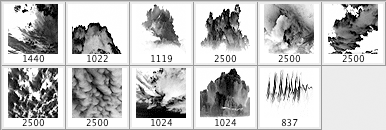
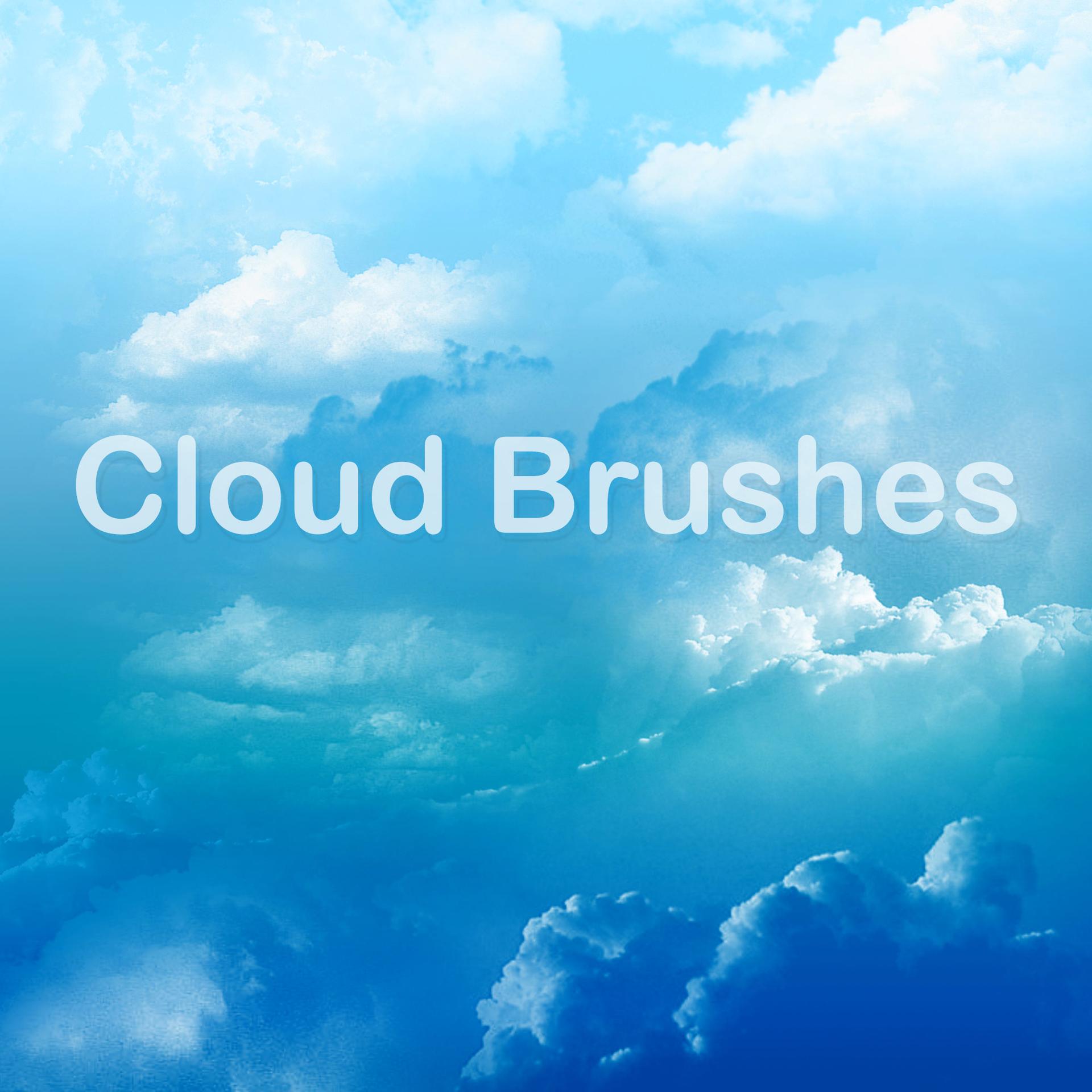
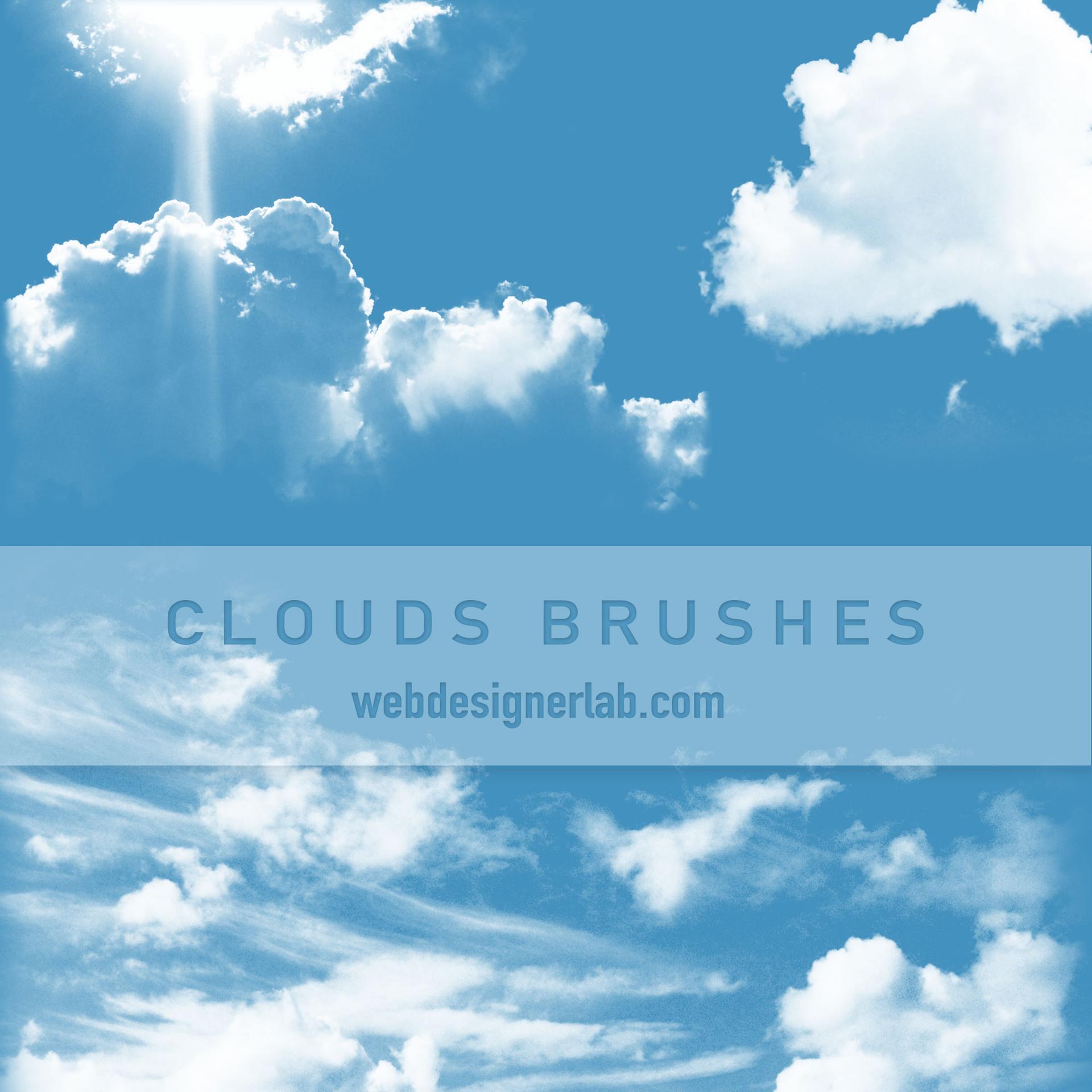
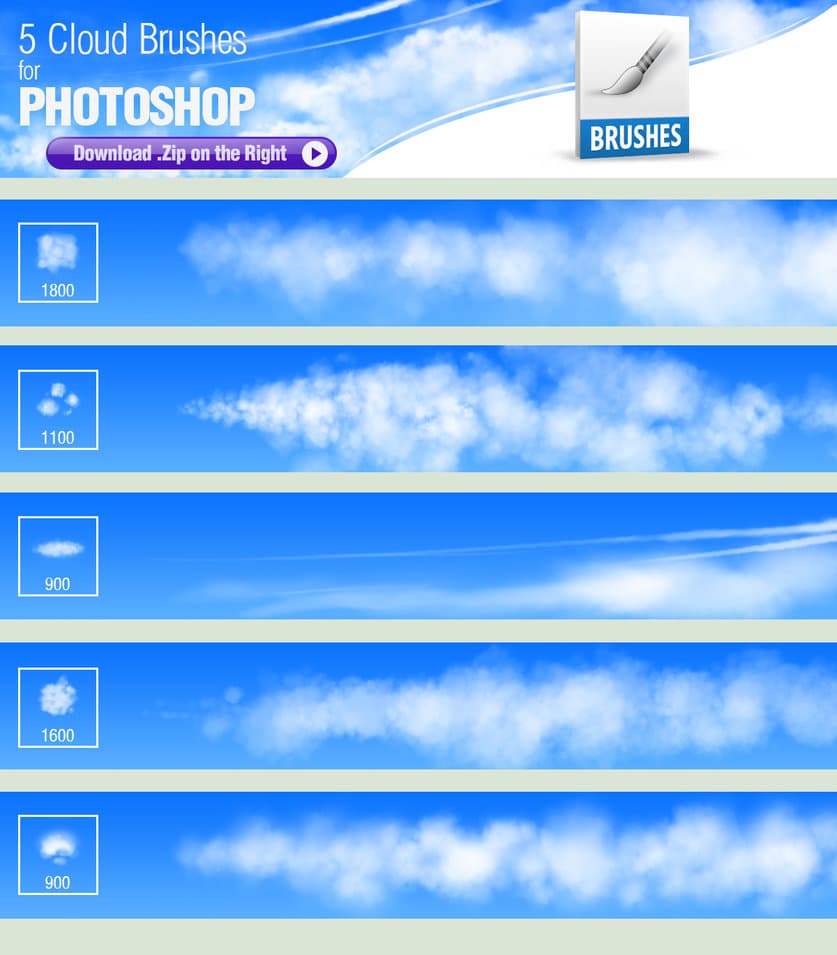
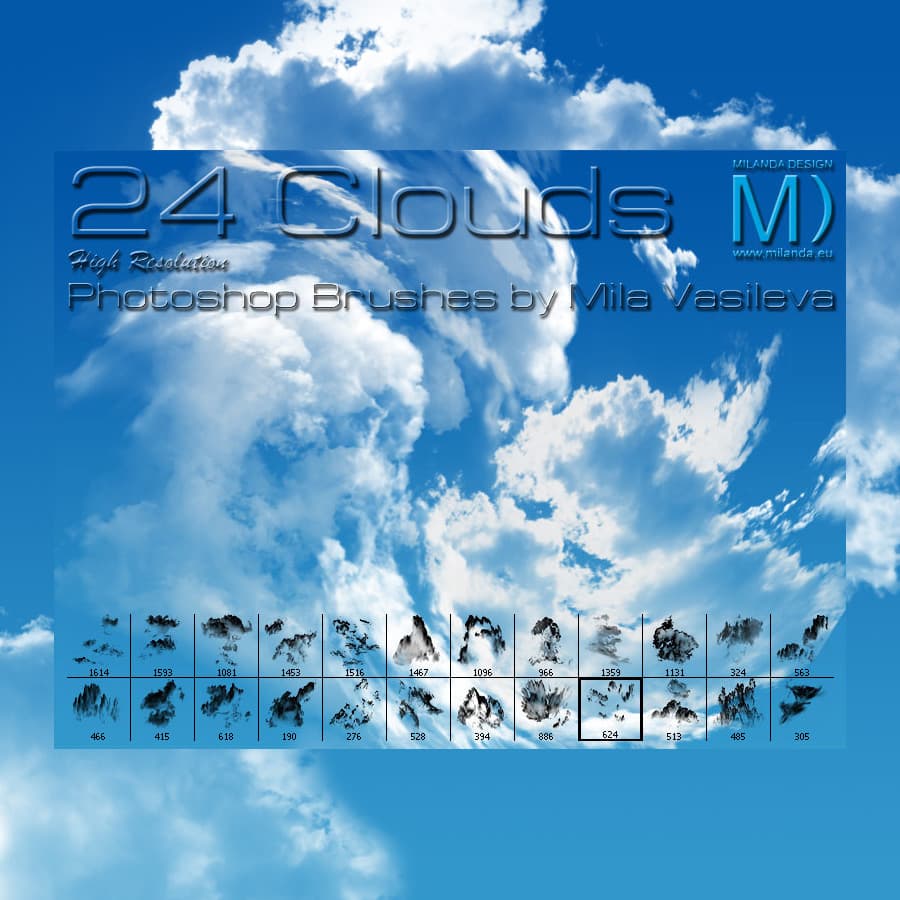
This set of 11 high-resolution cloud Photoshop brushes is a must-have for anyone who wants to create realistic and stunning cloudscapes in their digital artwork. This versatile collection of brushes includes a variety of cloud formations, from fluffy and puffy cumulus clouds to dramatic and intense cirrostratus clouds, all carefully designed to add depth and realism to your compositions.
What sets these brushes apart is their high resolution and excellent color fidelity, which means that even the most intricate details of your artwork will be preserved and look stunning in prints. Whether you are working on atmospheric landscapes, surreal dreamscapes, or celestial backdrops, these brushes offer endless possibilities for creating dynamic cloud effects that will make your artwork stand out.
With 11 unique brushes to choose from, you will have the flexibility to experiment with different cloud formations and create a variety of effects, depending on your artistic vision. These brushes are an excellent addition to any digital artist's toolkit, whether you are a beginner or a professional.
What's Included