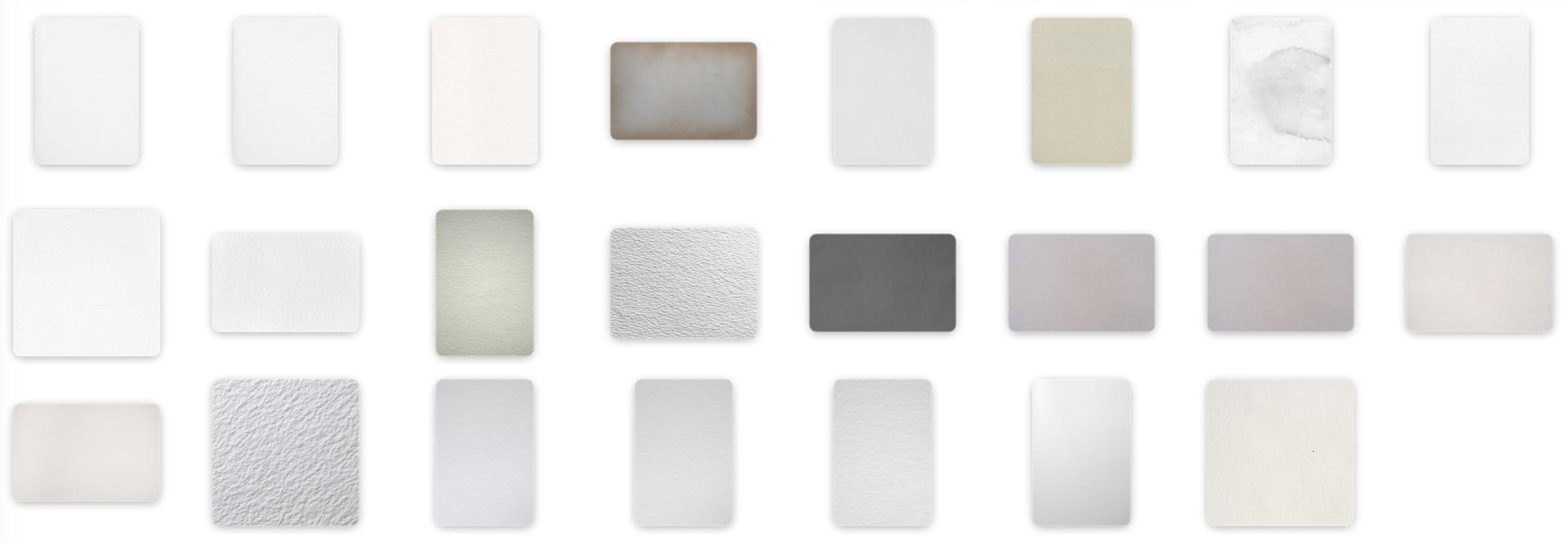
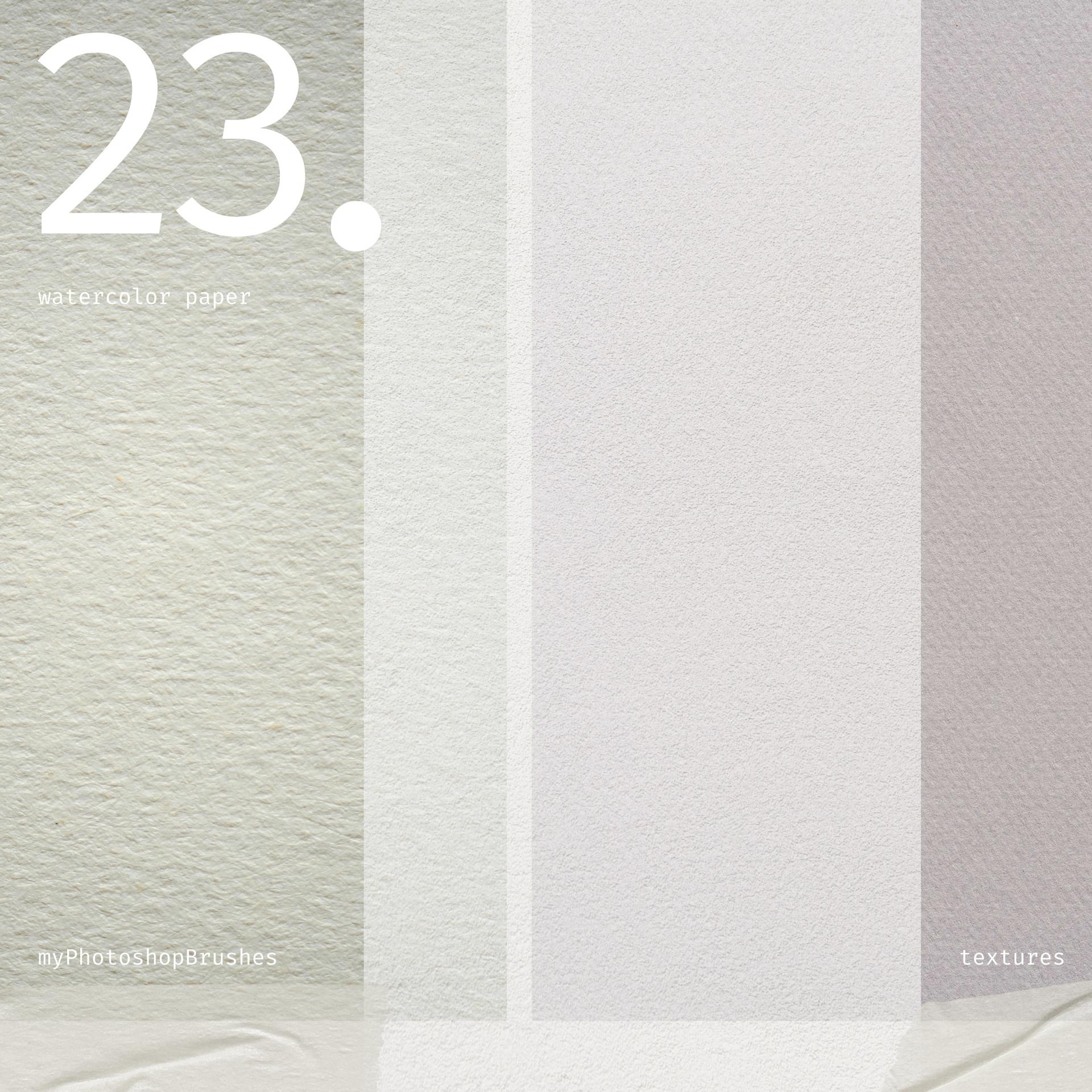
23 High-Quality Watercolor Paper Textures
Resource Details
- Format
- JPG
- Size
- 109 MB
- Opens in
- Photoshop, Procreate, Affinity Photo, GIMP, Krita
- Items in set
- 23
- Downloads
- 1.2k
- Added
- Mar 12, 2026
Tags
Description
Elevate your digital art with this essential collection of 23 authentic watercolor paper textures. Whether you are a digital painter, a graphic designer, or a scrapbooking enthusiast, these textures provide the perfect organic foundation for your next masterpiece.
Each file in this pack captures the unique grain, tooth, and subtle imperfections of real physical paper. From smooth hot-pressed finishes to heavy-duty rough grains, this set offers a wide variety of surfaces to suit any artistic style. What’s Inside:
- 23 Unique Textures: A diverse range of paper weights and finishes.
- Realistic Detail: High-resolution scans that preserve every fiber and dimple.
- Versatile Use: Perfect as background layers, overlay effects, or for use with watercolor brushes to achieve a "traditional" look.
- Completely Free: Available for both personal and commercial projects.
Pro Tip:
To get the most out of these textures in Photoshop, try placing the texture on the top layer and changing the Blending Mode to Multiply or Overlay. Adjust the Opacity to find the perfect balance between your artwork and the paper grain.
Download this pack today and add a touch of traditional craftsmanship to your digital workspace!
What's Included